Examples of Use Cases for Testing Contests
Use Case 1: Verifying Data Collection
Use Case 2: Confirming Manager Notifications
Use Case 3: Checking Location and Password Rules
Step 1: Locate the Contest in the Web App or Mobile App
Step 2: Test Location Based Contest
Step 3: Confirm User Details Are Required
Step 3a: Ensure List of Voting Options Appears if Applicable
Step 4: Test Password Protection
Step 6: Ensure Entry Notifications are Sent
Step 7: Verify The Correct POIs display contests
Step 8: Verify Contest Entries
Once your contest has been created in the CMS and added to your POI or organization, it’s important to test it before launching it publicly. Testing ensures that visitors can enter the contest successfully, that your settings are working as expected, and that all entry data is sent to the Driftscape CMS—including email notifications to organization managers.
This guide walks you through testing each contest type, confirming that entries appear in the All Contest Entries report, verifying emails, checking location settings, and reviewing contest behaviour inside the app.\
Before you Begin
Before testing your contest, ensure the following:
Your contest has been added to at least one POI in your organization
You have access to the Driftscape Mobile App, or Webb App
If you haven’t added a contest to your organization yet, see Contests Overview and Implementing Contests.
Examples of Use Cases for Testing Contests
Use Case 1: Verifying Data Collection
Confirm that all user information, voting choices and POI details are recorded correctly in your contest reports. Which can be used for marketing and advertising future campaigns.
Use Case 2: Confirming Manager Notifications
Each contest entry should notify organization managers via E-mail. This is important for tracking purposes and to ensure your contest is running smoothly.
Use Case 3: Checking Location and Password Rules
Not all contests are open to everyone and can be password or location protected. Verify these conditions before going live with your campaign to avoid unwanted entries.
Get Started: Testing Coupons
Step 1: Locate the Contest in the Web App or Mobile App
Open the Driftscape Mobile App and find the POI you have assigned your contest to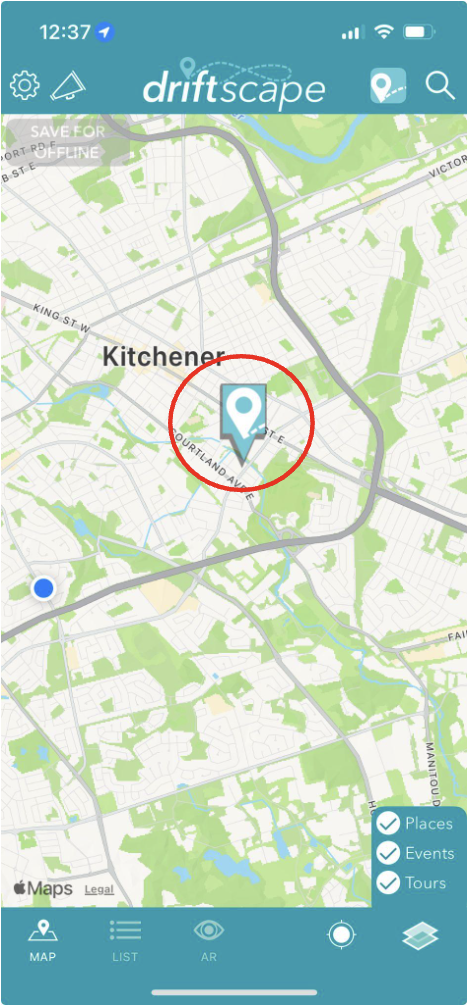
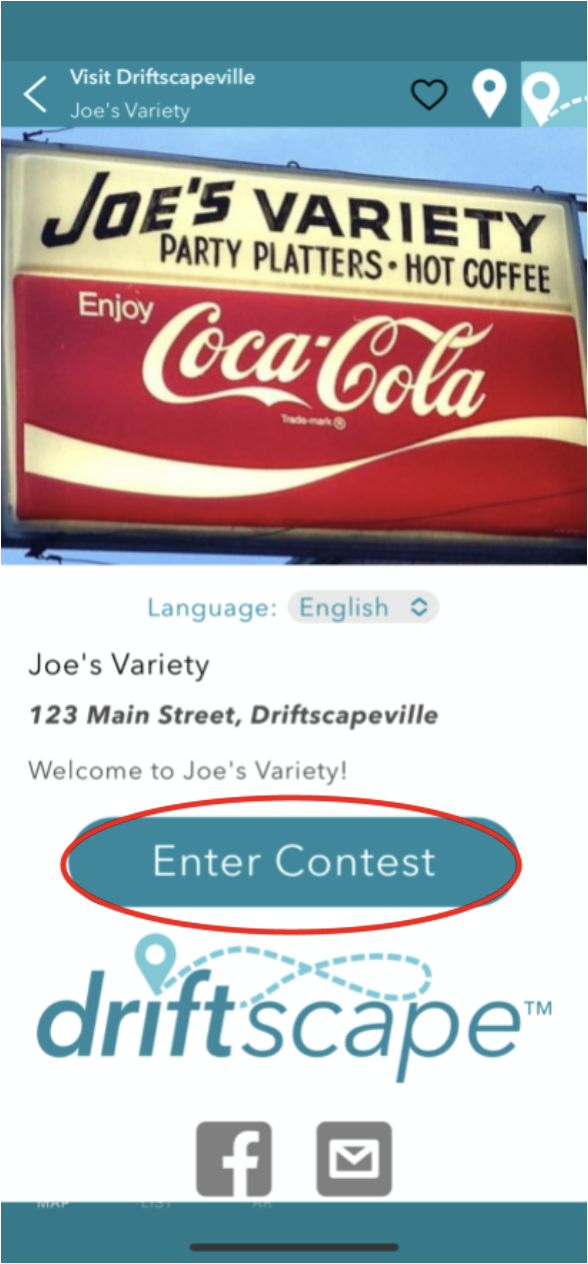
Open the POI and select “Enter Contest” underneath the POI Description
Step 2: Test Location Based Contest
If your contest is “Enterable only when on location”, complete step 1 when you are not at the POI. You should receive an error message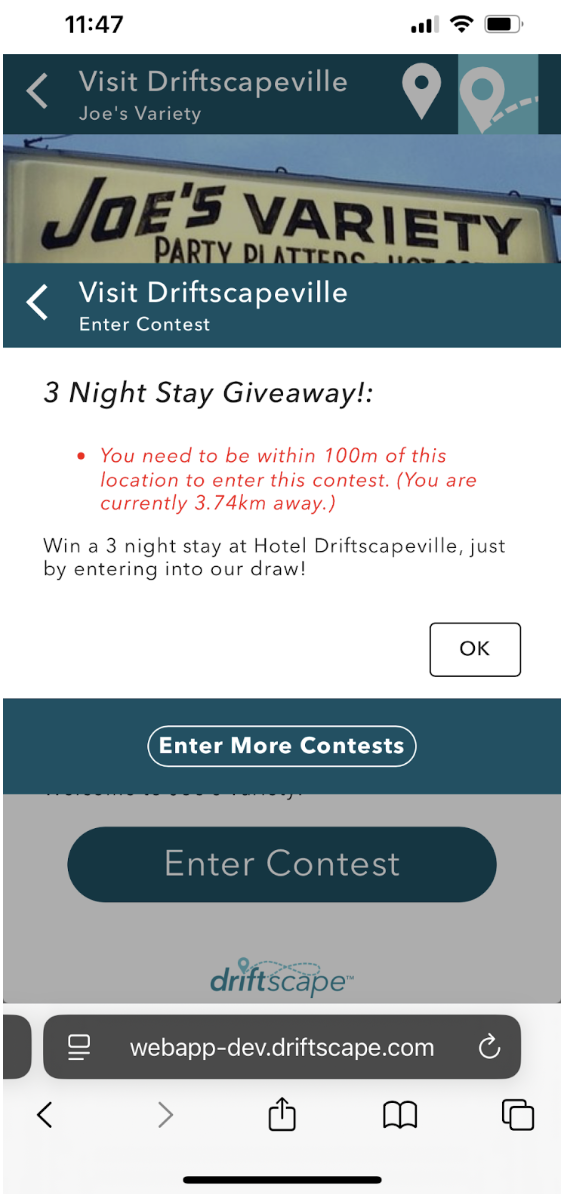
After confirming you cannot enter the contest when away from the POI, travel to the POI to continue testing.
If you are unable to access the POI currently, you can de-activate “Enterable only when on location” in the contest setup to continue testing. Ensure this is re-activated once testing is complete.
Once you are at the POI, repeat step 1. You should see the contest entry page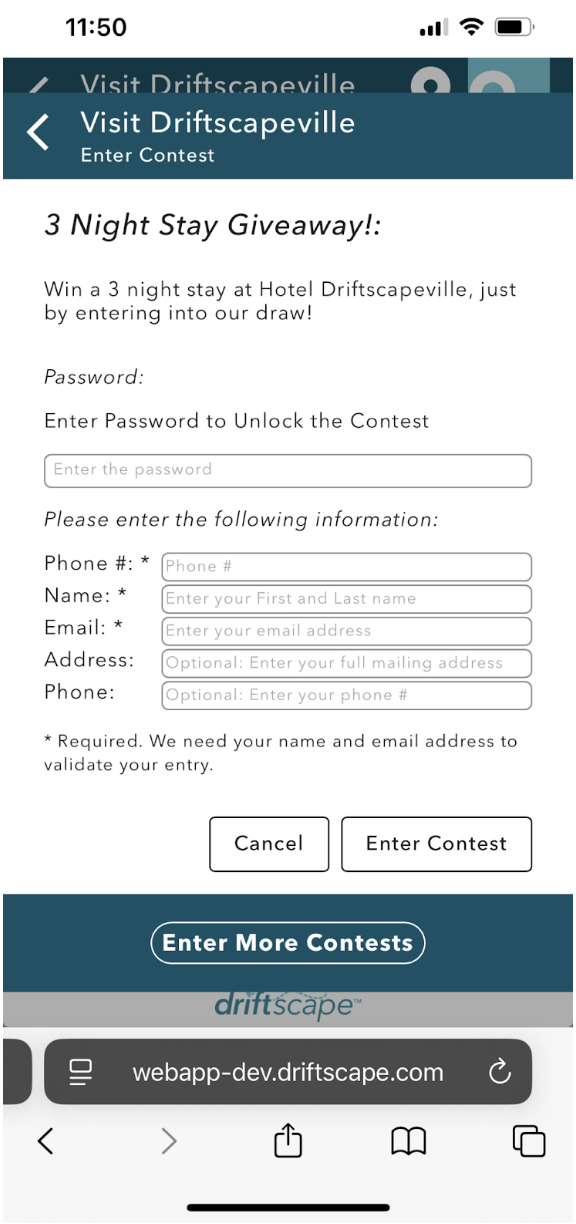
If you are still receiving a location error, see How To Enable Location Permissions for my Mobile Browser and ensure you have GPS functionality enabled for your device.
Step 3: Confirm User Details Are Required
When setting up your contest, by default only users' name and email address are required. If you require more information, verify an asterisk (*) is beside that input field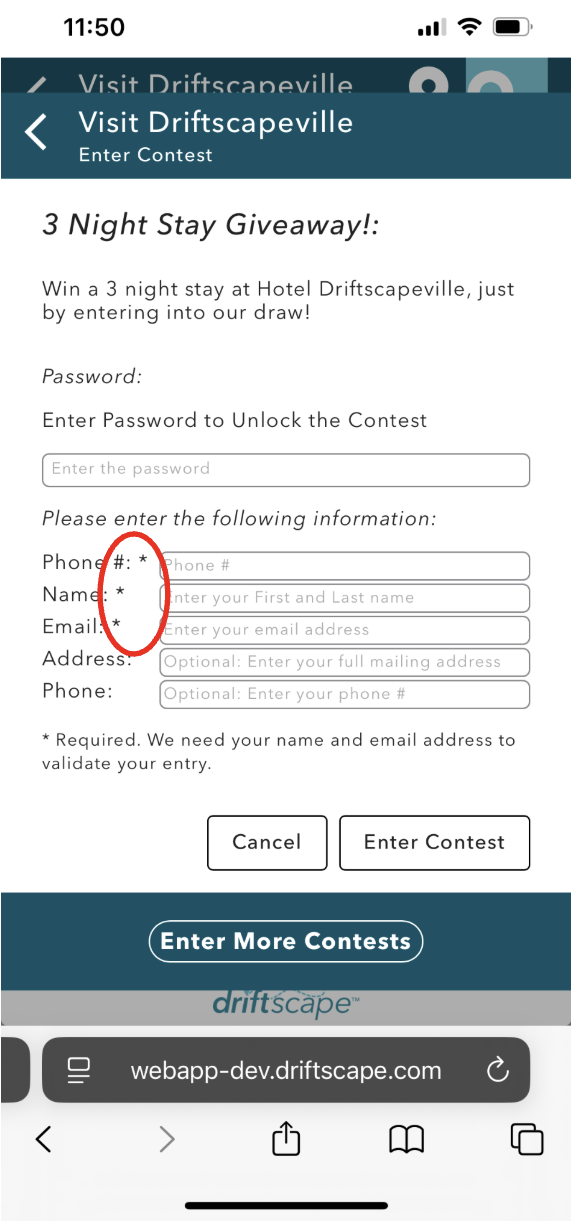
If an asterisk is not beside a piece of information you require from entrants, see implementing contests to ensure you have marked all the required fields on setup
Once you see an asterisk beside every field you require, click enter contest without filling in any information.
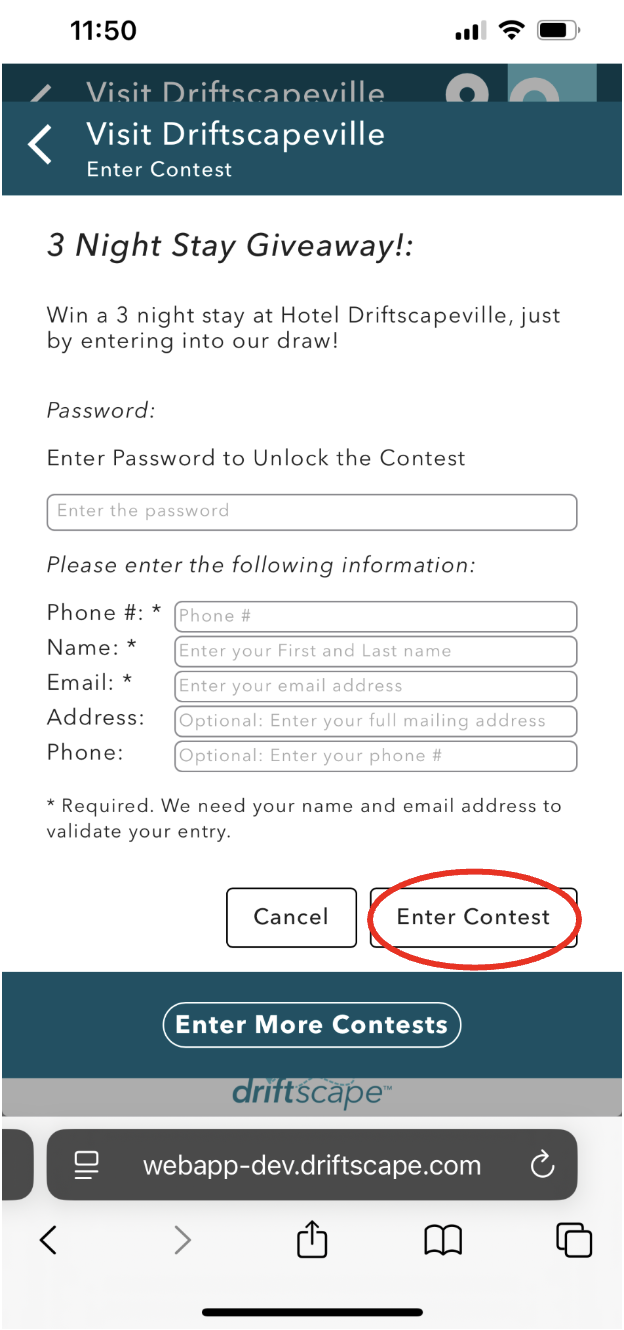
You should receive an error message “This field is required” underneath every field required by users to enter.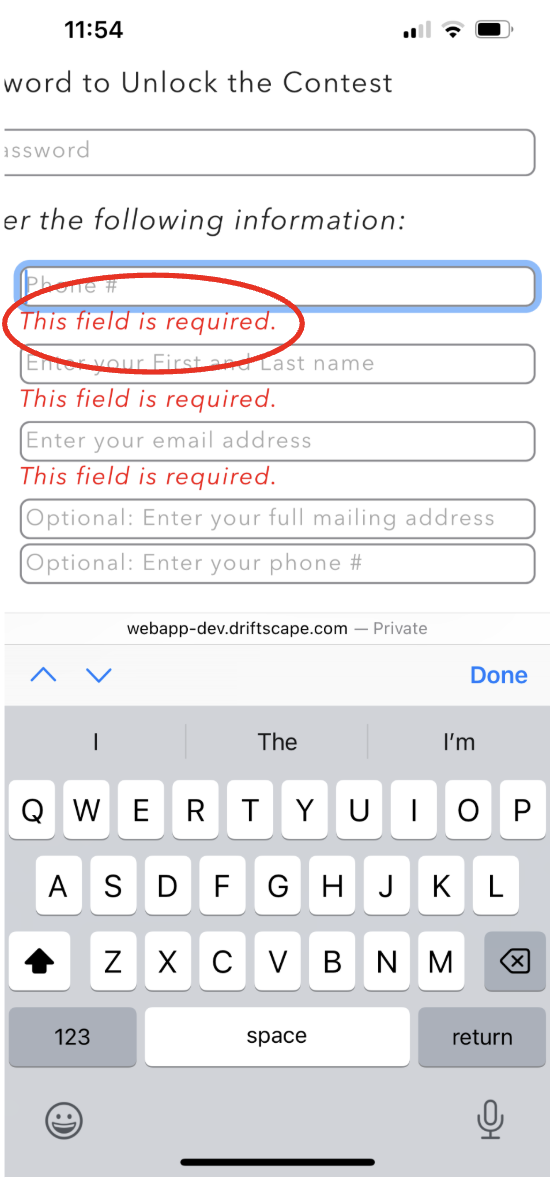
Fill out all the information fields required except the password (if applicable)
Step 3a: Ensure List of Voting Options Appears if Applicable
When running a “List of Voting Options Contest” an additional field must be present during this step. Ensure that the “Vote for” field is present.
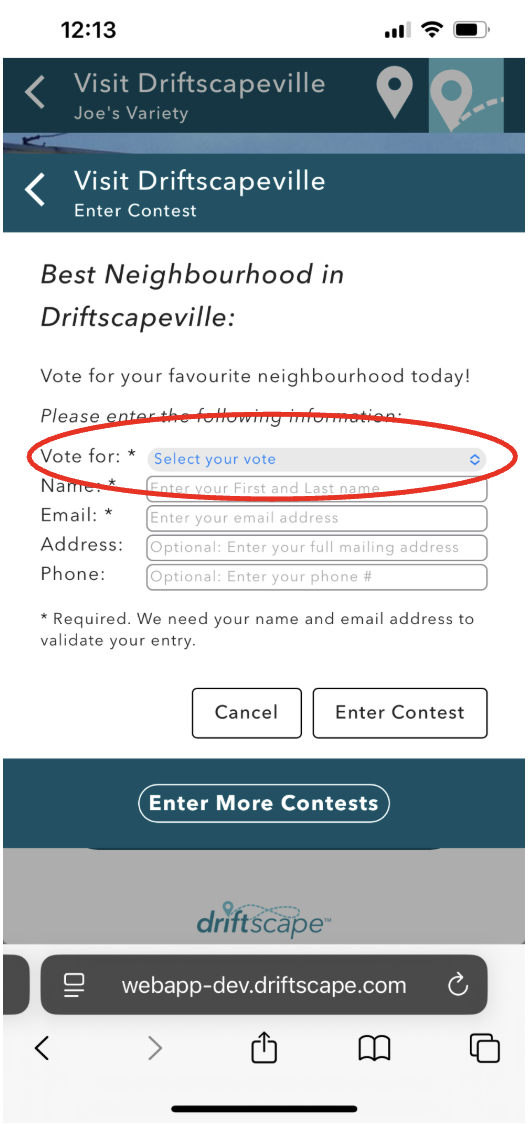
Click the field and ensure all the voting options are correct
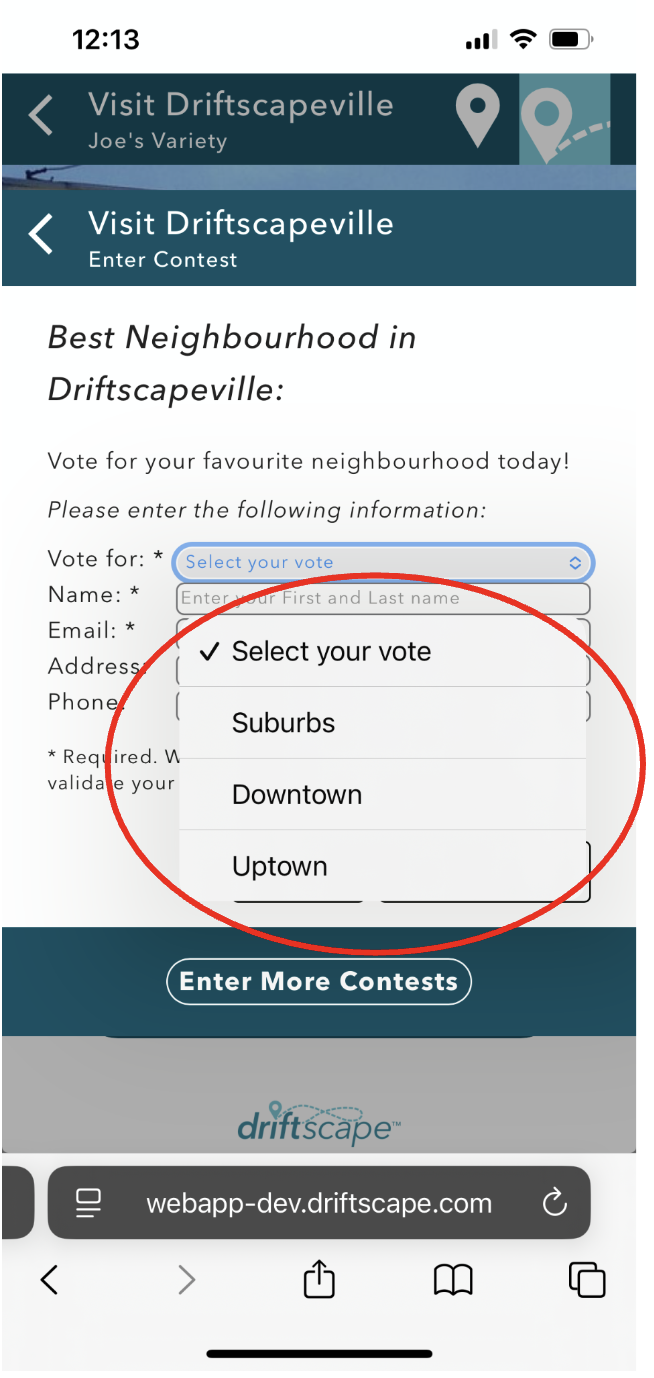
If a voting option is incorrect, see implementing contest to ensure the contest is setup correctly.
Step 4: Test Password Protection
If your contest does not require a password, you can skip this step and click “enter contest”. If you require a password, click “enter contest” without a password input. You should receive an error message.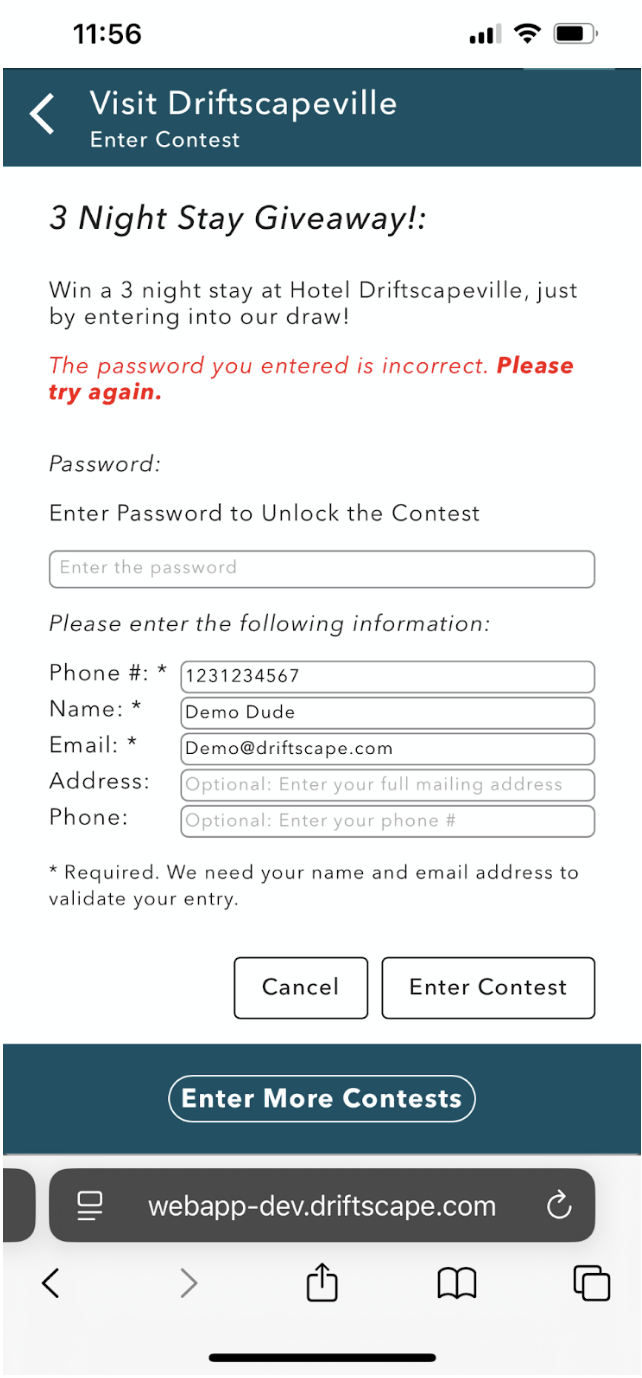
Then input an incorrect password and click “enter contest”. You will receive the same error message
Finally input the correct password for the contest and click “enter contest”. This will allow you to successfully enter the contest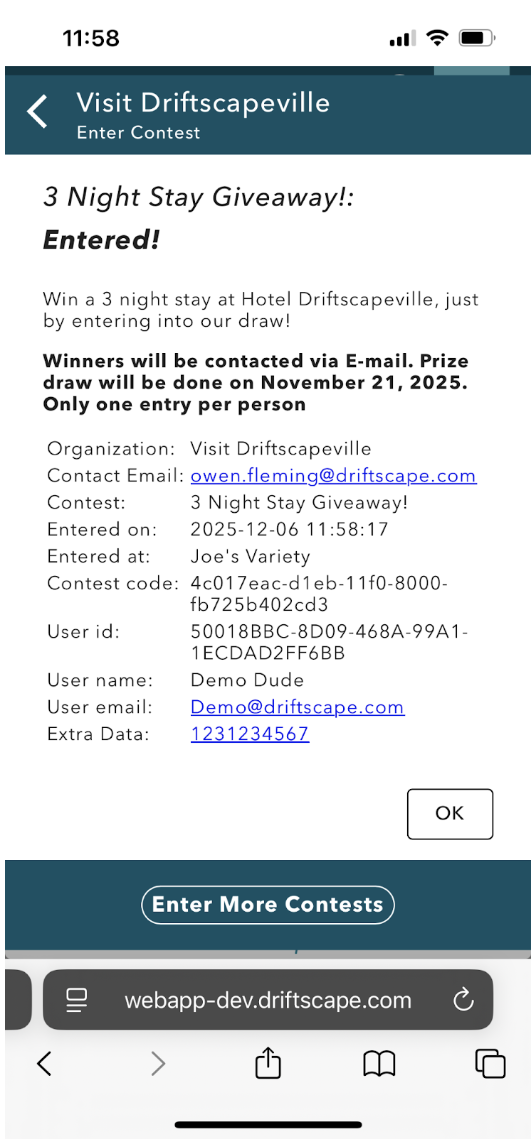
Step 5: Test Entry Frequency
By default users can only enter a contest once, if you left the “Entry Frequency” field blank this is the expected result.
To test, repeat step 1 after entering the contest. You will receive an error message.
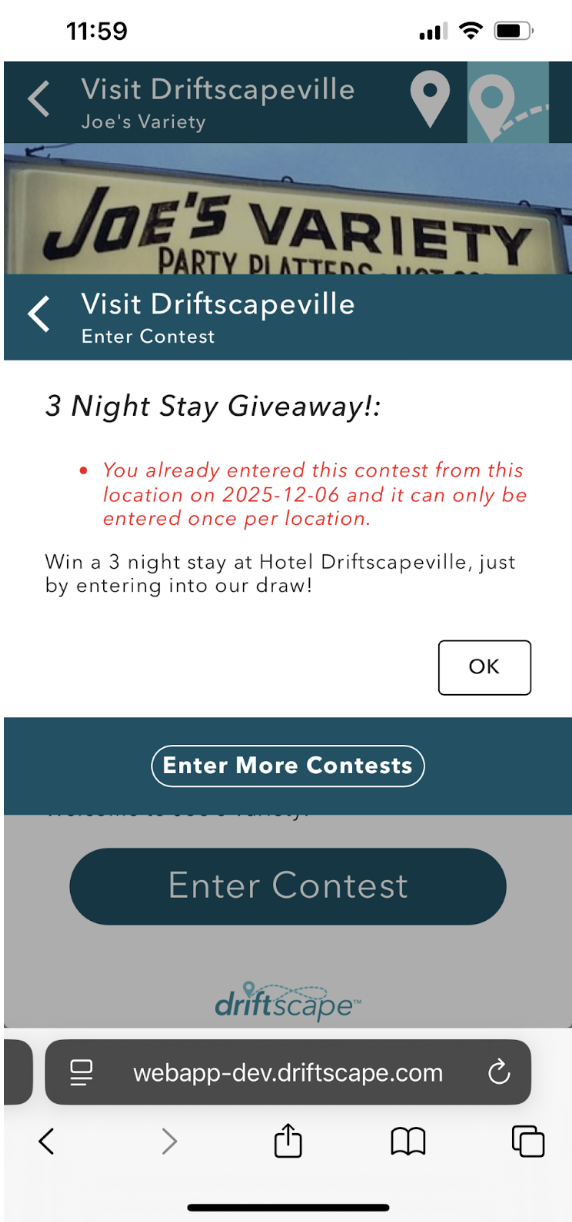
If your entry frequency is set to 0. You will be prompted to enter the contest again
If your entry frequency is set to anything above zero, you will immediately receive the same error message.
Return the set number of days (determined upon setup of the contest) later and repeat step 1. You should be able to enter the contest again.
Step 6: Ensure Entry Notifications are Sent
After each entry, an email notification will be sent to all managers of the organization. Along with the email set as “email for internal notifications”. If you are already a manager of this organization, you should receive an email each time you test your contest. If not, verify your role within the organization account.
If you are not a manager, but wish to test this feature. Ensure your email has been added to the “email for internal notifications” field of your organization properties.
First navigate to “org properties”
At the bottom find the “email for internal notifications” field, and add your email address. Remember to copy the original email listed, so you can revert this change after.
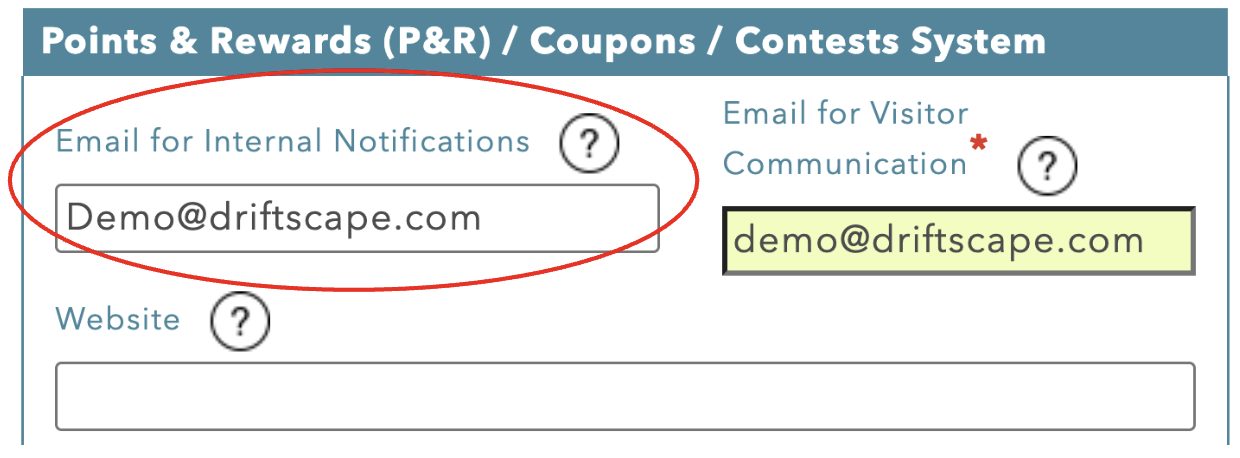
Once you have added your email address, repeat step 1 and enter the contest again. You should receive a notification email showing all the contest entry information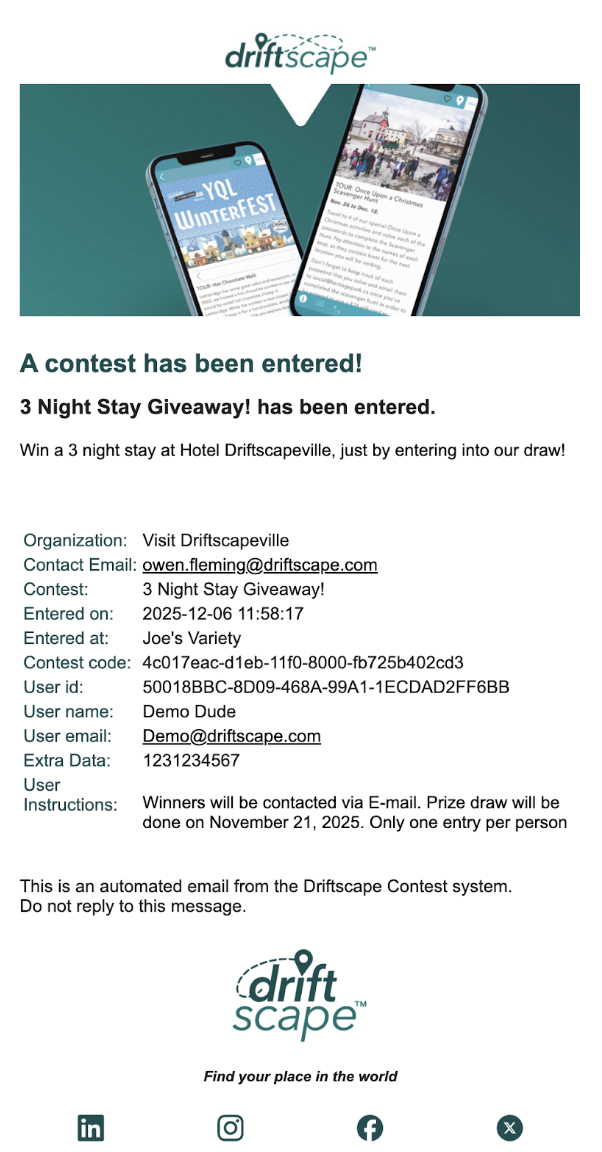
If you are not the default contact email, be sure to switch the email address back to it’s original under Org Properties after making this test.
Step 7: Verify The Correct POIs display contests
While viewing your contest entry page in app, select the “enter more contests” button at the bottom of the popup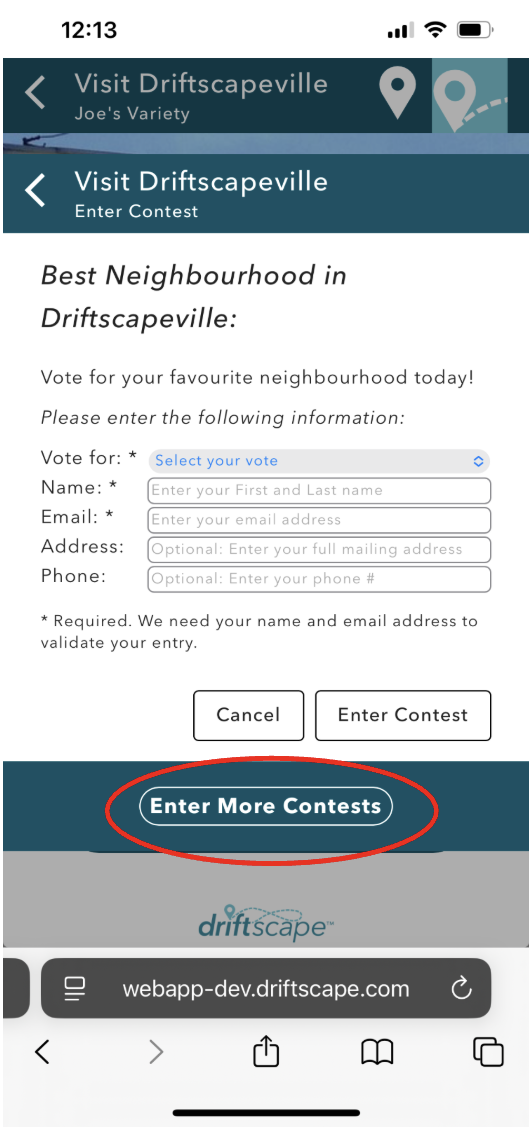
You will be brought to a page with all your contests and POIs associated with them. Each contest name is listed at the top of the table
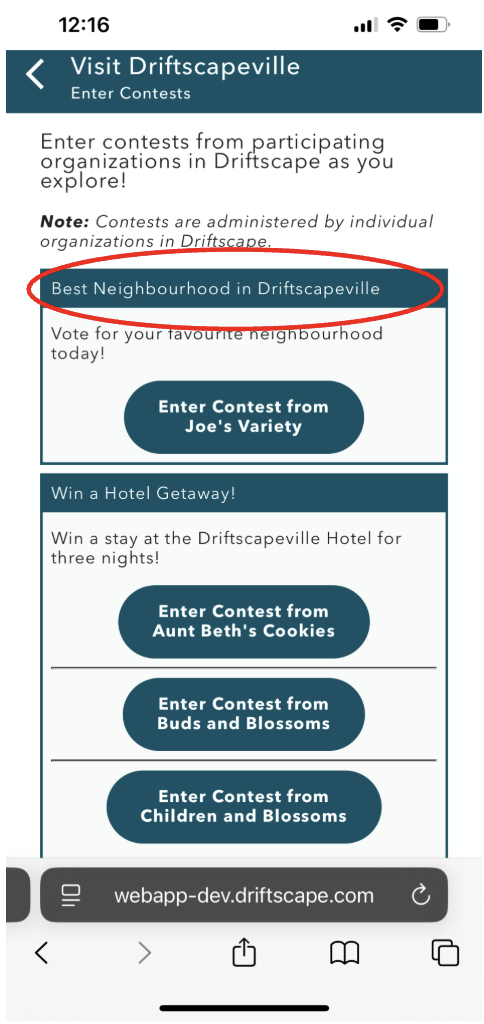
The POIs associated with that contest are listed underneath the contest name, as buttons
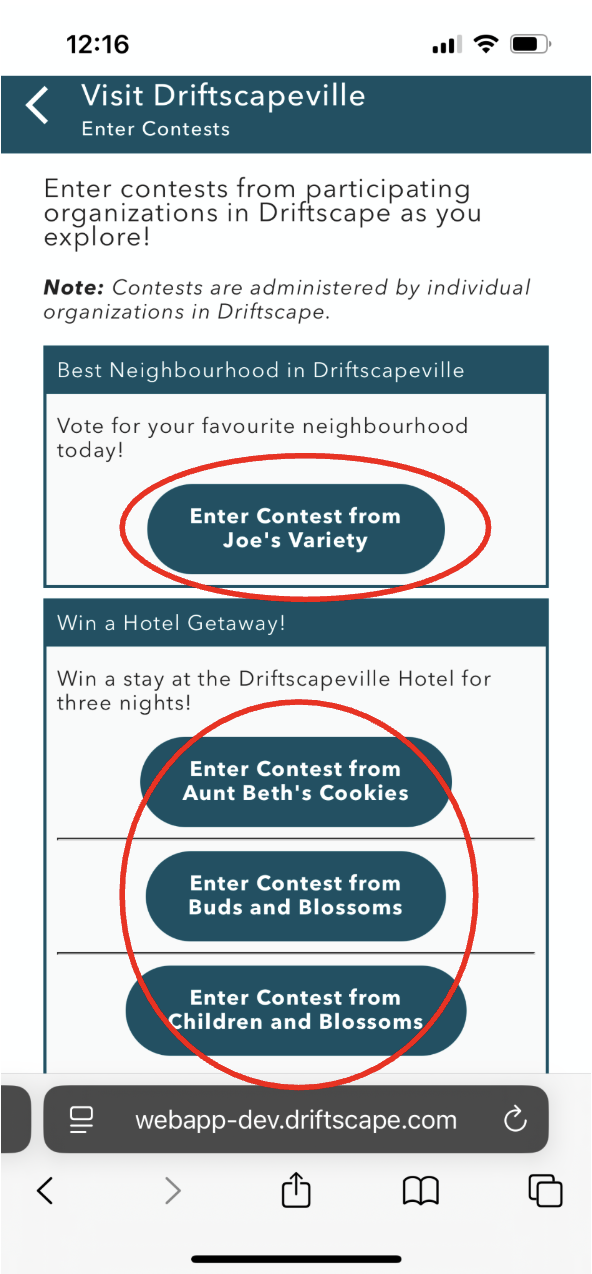
Ensure the correct POIs are showing under the correct contests. If a POI is displaying under the wrong contest, navigate to that POI in the CMS and select edit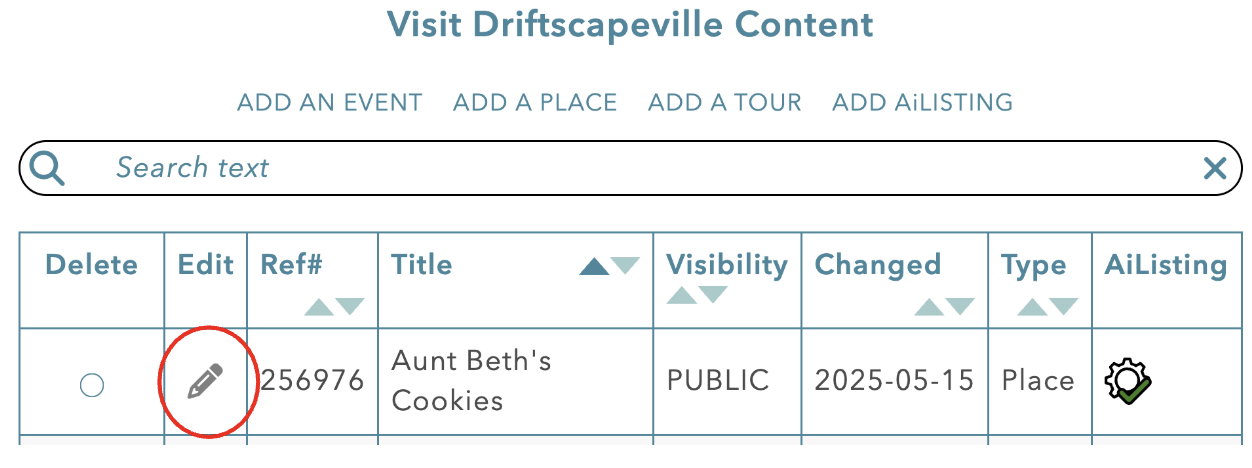
Select Update, then return to the application to verify the change.
Step 8: Verify Contest Entries
Inside the Driftscape CMS, navigate to the “All Contest Entries” page by clicking “org content”

Then select the “Points/Rewards/Coupons/Contests” menu beside your organization name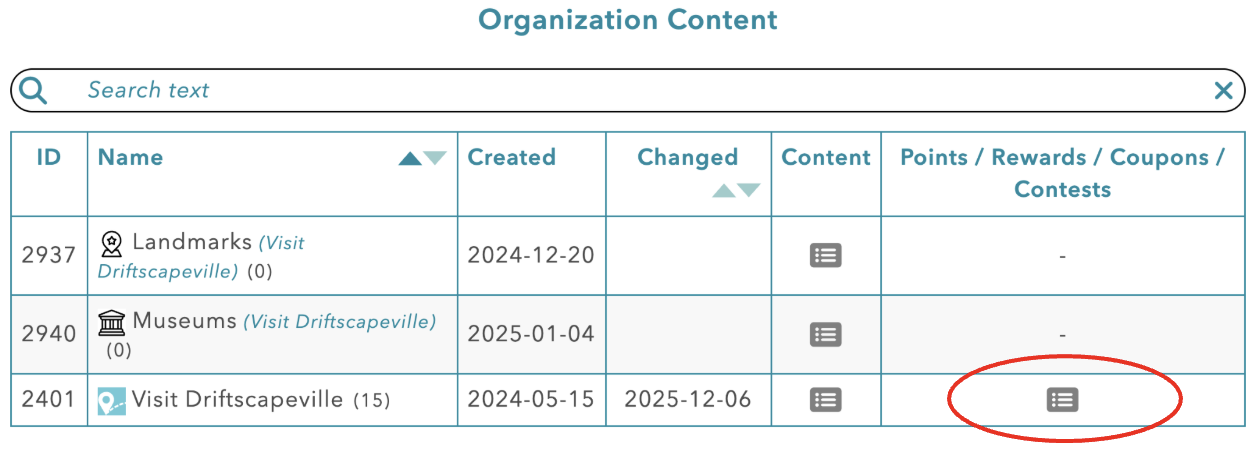
Next select the “All Contest Entries” tab on this page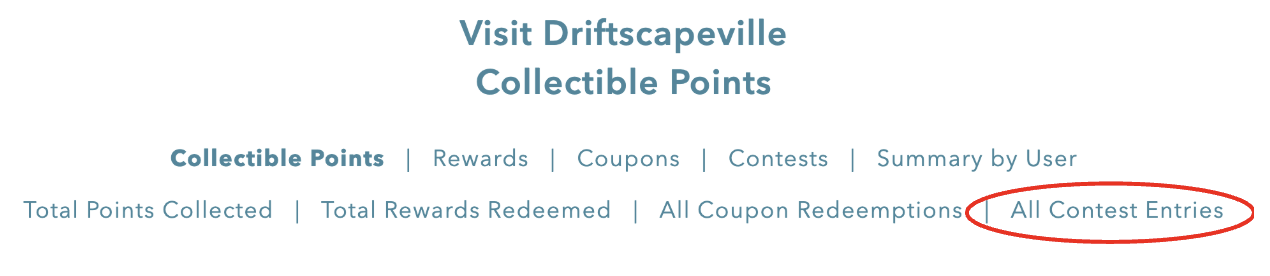
On this tab, you will see a table with all your contest entries. Verify that every test entry you have added is present.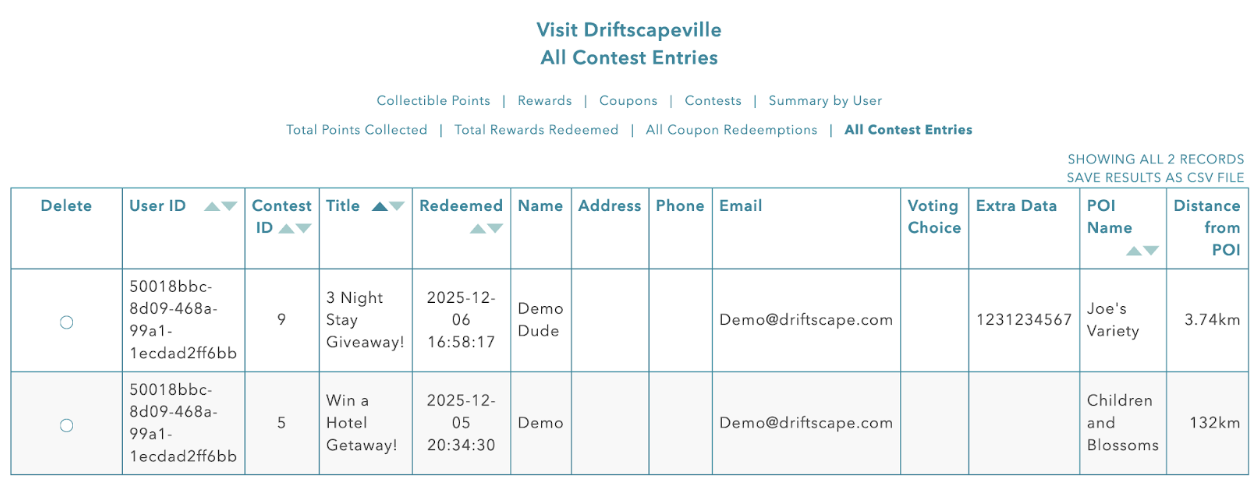
Once you have verified your entries are showing, you can clear your test entries. Select the “delete” button beside every entry you want to remove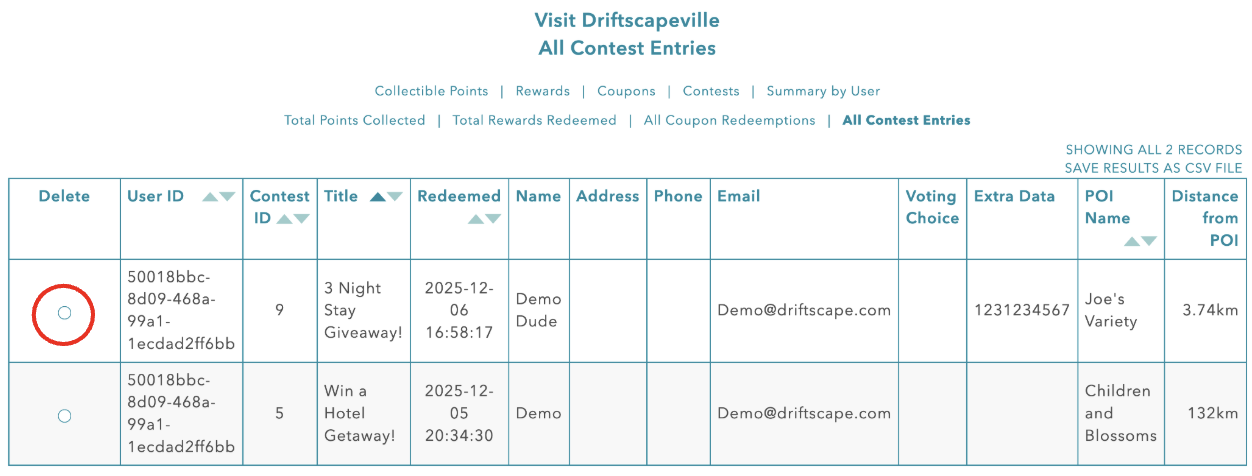
Alternatively, use the “select all” button at the bottom left of the table, if you need to remove all the entries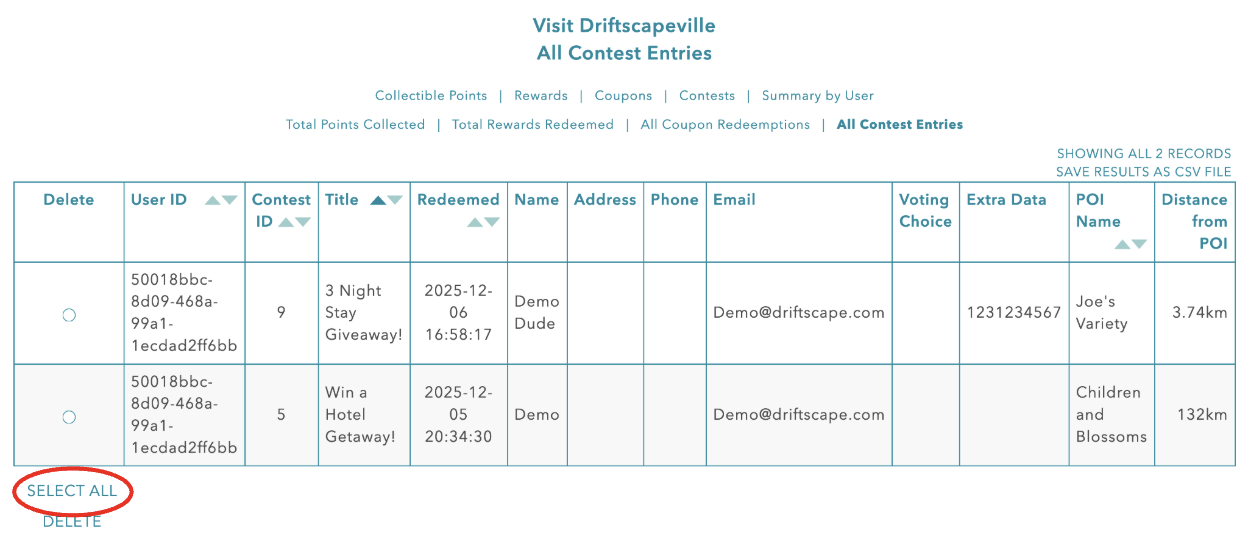
Then choose “delete” underneath the “select all” button.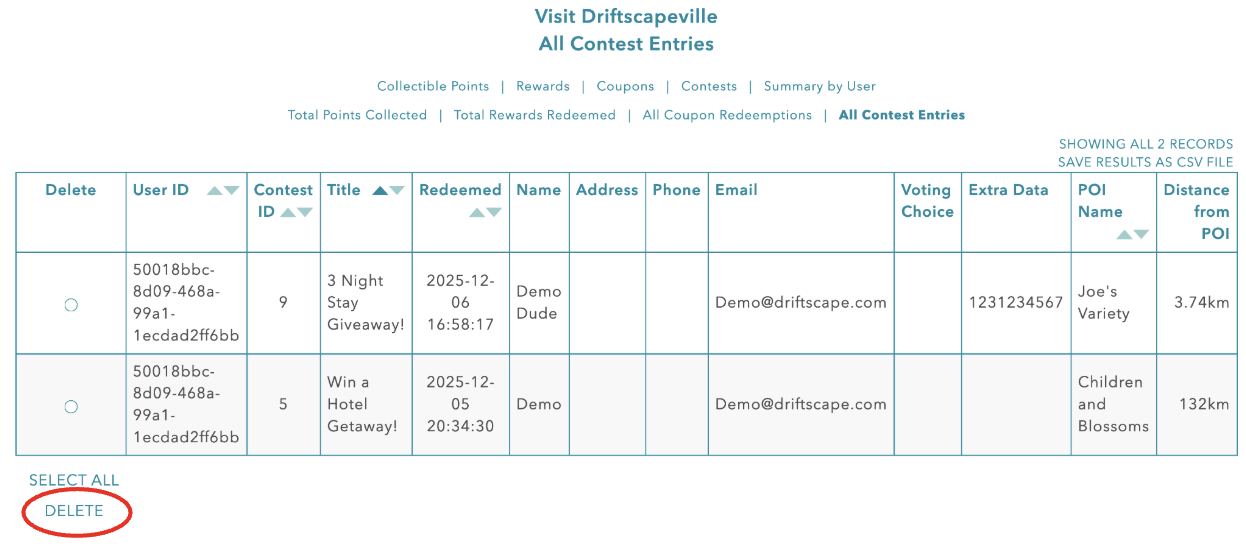
This will clear your test entries. You are now ready to go live with you contest!
Related Articles
Was this article helpful?
That’s Great!
Thank you for your feedback
Sorry! We couldn't be helpful
Thank you for your feedback
Feedback sent
We appreciate your effort and will try to fix the article