TABLE OF CONTENTS
Examples of Uses Cases for Contests
Use Case 1: Drive Visitors into Businesses with a Prize Draw Contest
Use Case 2: Choose the Community’s Favourite with a POI Voting Contest
Use Case 3: Name Our Cities Mascot with a List of Voting Options Contest
Step 1: Edit your Contest Settings
Step 2: Access the Contest Menu
Add a List of Voting Options Contest
Step 4: Add your Contest to a POI
Step 5: Assign a Contest to your Organization or Sub-Organization (Optional)
Step 5a: Removing a Contest from one POI in an Organization
Step 6: Access Your Contest Entries
Step 7: Determine the Contest Results
List of Voting Options Results
Step 8: View your Communication Opt-Ins
Contests in Driftscape allow organizations to create interactive activities such as prize draws, POI-based voting, and custom voting lists. Once created in the CMS, contests can be displayed inside POIs, attached to an entire organization or sub-organization, and managed alongside your other engagement features.
This guide walks you through creating each type of contest, configuring contest settings, and attaching your contest to a POI or organizational level.
If you’re new to contests, start with the Contests and Voting Overview article to understand the differences between Prize Draw, POI Voting, and List of Voting Options contests.
What is a Contest?
A contest is an activity, draw, or vote that visitors can enter through a POI in the Driftscape app. Contests can collect user information, require visitors to be physically on-site, and allow single or repeated participation depending on how you configure the settings.
Once live, contests appear inside POIs as a button, and visitors can also browse all active contests through the organization’s contest menu in the app. All contest entries are stored in the Driftscape CMS and can be exported to a spreadsheet so organizations can review entries, choose winners, and contact them manually.
Examples of Uses Cases for Contests
Use Case 1: Drive Visitors into Businesses with a Prize Draw Contest
A BIA wants to encourage people to explore local shops, so they associate a Prize Draw Contest with every participating business in Driftscape. When a visitor stops by a business, they can submit an entry into the prize draw. The more businesses they visit, the more entries they can earn.
This creates a simple and effective incentive for visitors to explore multiple locations while supporting local businesses.
Use Case 2: Choose the Community’s Favourite with a POI Voting Contest
A tourism district wants to highlight the best patios in the area, so they run a “Favourite Patio of 2025” contest. Each participating restaurant is added as a POI, and the contest is associated with each location. Whenever a visitor votes on a patio’s POI, that restaurant earns a vote in the contest.
Throughout the season, votes are tracked automatically. At the end of the campaign, the tourism district can share the results with their audience and celebrate the community’s top-rated patio.
Use Case 3: Name Our Cities Mascot with a List of Voting Options Contest
A city wants residents to help choose the name of their new mascot. They create a List of Voting Options contest with several name choices (e.g., “Maple Moose,” “River Raccoon,” “Skyline Squirrel”). The contest is then associated with multiple POIs across the city—such as parks, community centres, and attractions.
Whenever users visit or view one of these POIs in the app, they can cast a vote for their favourite mascot name. Once the contest ends, the city announces the winning name based entirely on votes gathered from real visitors in Driftscape.
Get Started: Adding a Contest
Step 1: Edit your Contest Settings
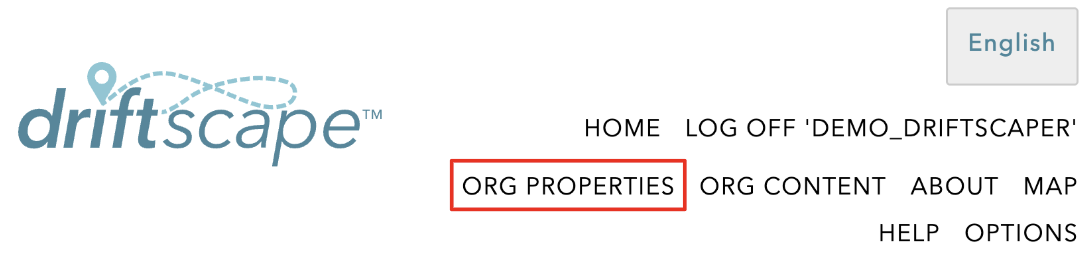
Inside the Driftscape CMS, navigate to the “ORG PROPERTIES” page using the top navigation menu
Find the Visitor Incentive Features section near the bottom of the page
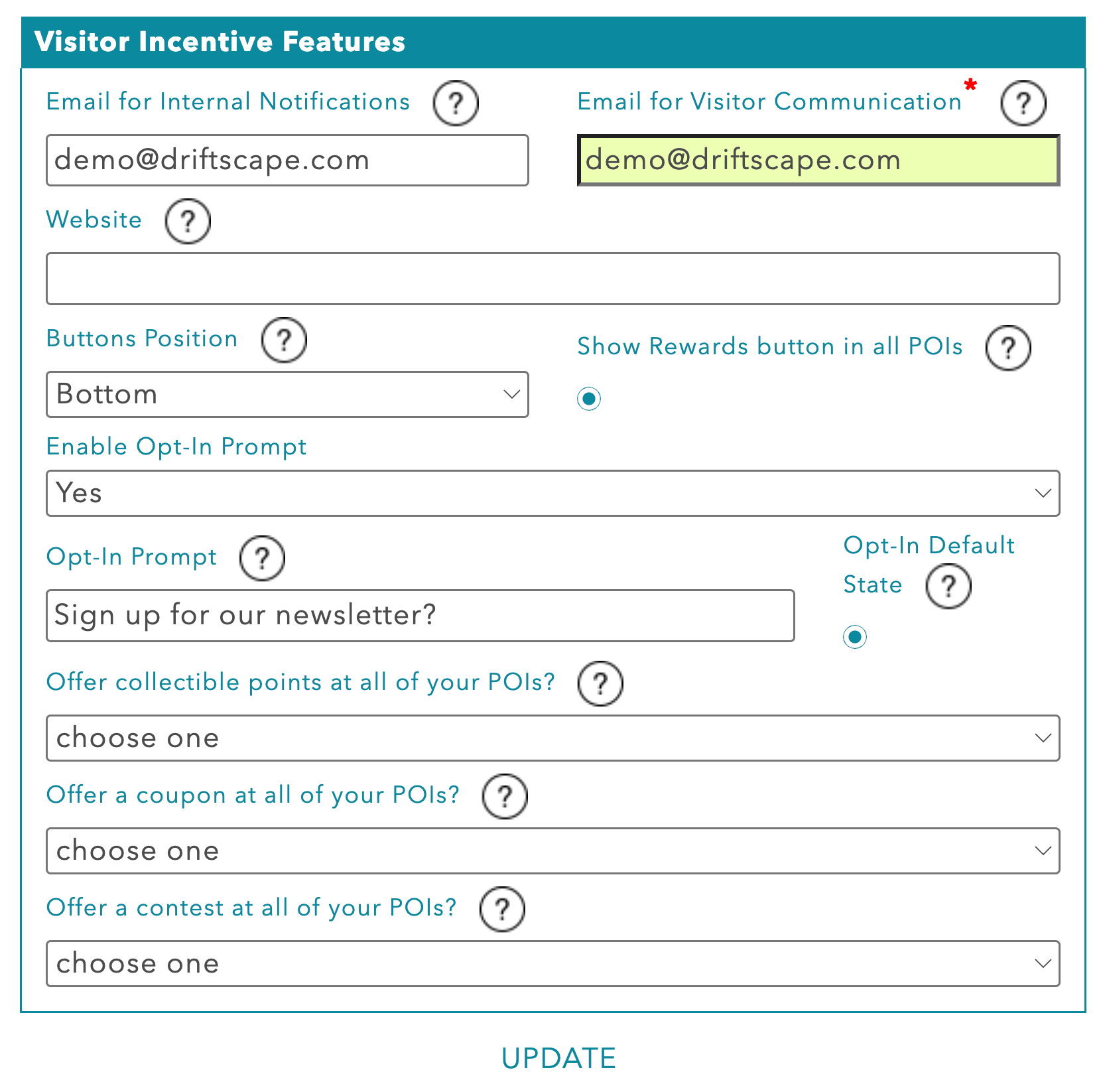
Fill out the following information…
Email for Internal Notifications: Add the email you want to receive notifications to, such as contest entries
Email for Visitor Communication: Add the email you want visitors to see & contact for questions
Website: Add your organization website
Buttons Positions: Sets whether contest button is above or below your POI description
Offer a Contest at all of your POIs: Adds a default contest to every POI listed in your application (only displayed if no other contest is assigned to that POI)
Setup your Opt-In Prompt
If you want to communicate with your visitors for purposes outside of your contests, it’s important to receive consent in compliance with CASL in Canada (other governing bodies in other countries). Adding an opt-in prompt to your contests is an easy way to gain consent and add these emails to your communications.
Inside the Visitor Incentive Features Settings, fill out the following fields:
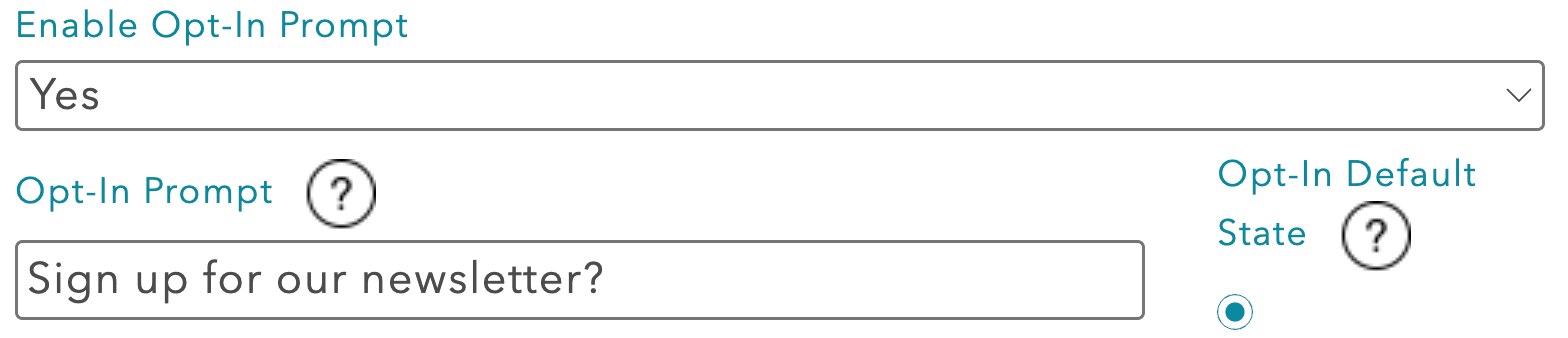
Enable Opt-In Prompt: Determines if the opt in prompt is visible on contests or not (select no if you don’t want to ask for consent to communicate)
Opt-in Prompt: Add text to describe what the user is opting into (ie. Sign up for our newsletter!)
Opt-In Default State: Determines if opt in is automatically checked or not
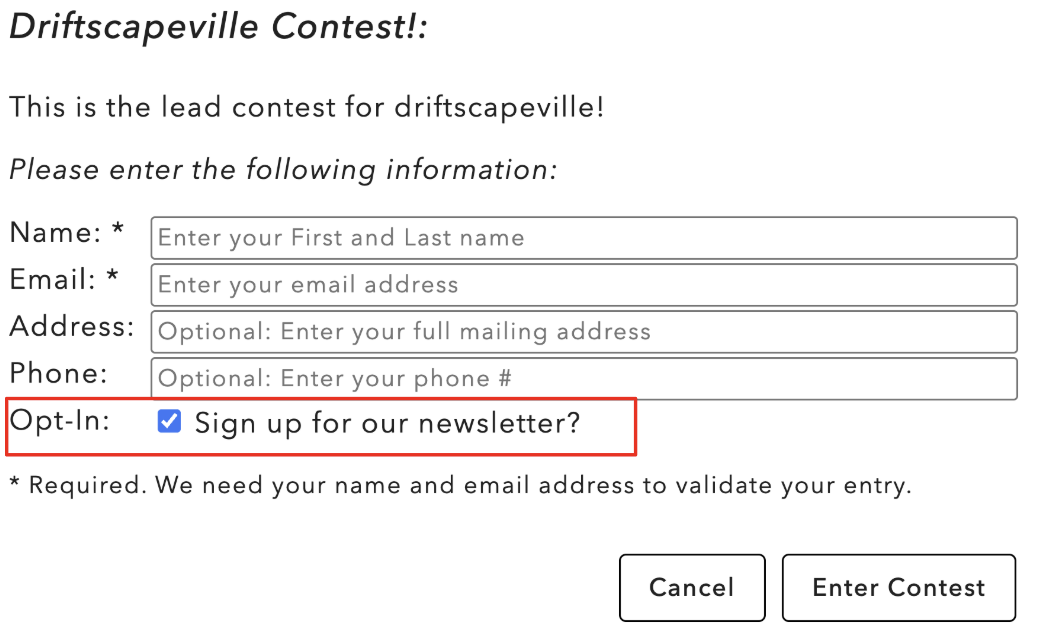
This will add an opt-in field to all contest entries, displaying a checkmark and your Opt-in Prompt text
When you’ve finished adding all your information, select “UPDATE” at the bottom of the page
This step only needs to be completed once, unless you wish to change these settings in the future.
After completing this step, you can skip to step 2 while building all future contests. Only repeat this if you wish to edit all contest settings.
Step 2: Access the Contest Menu
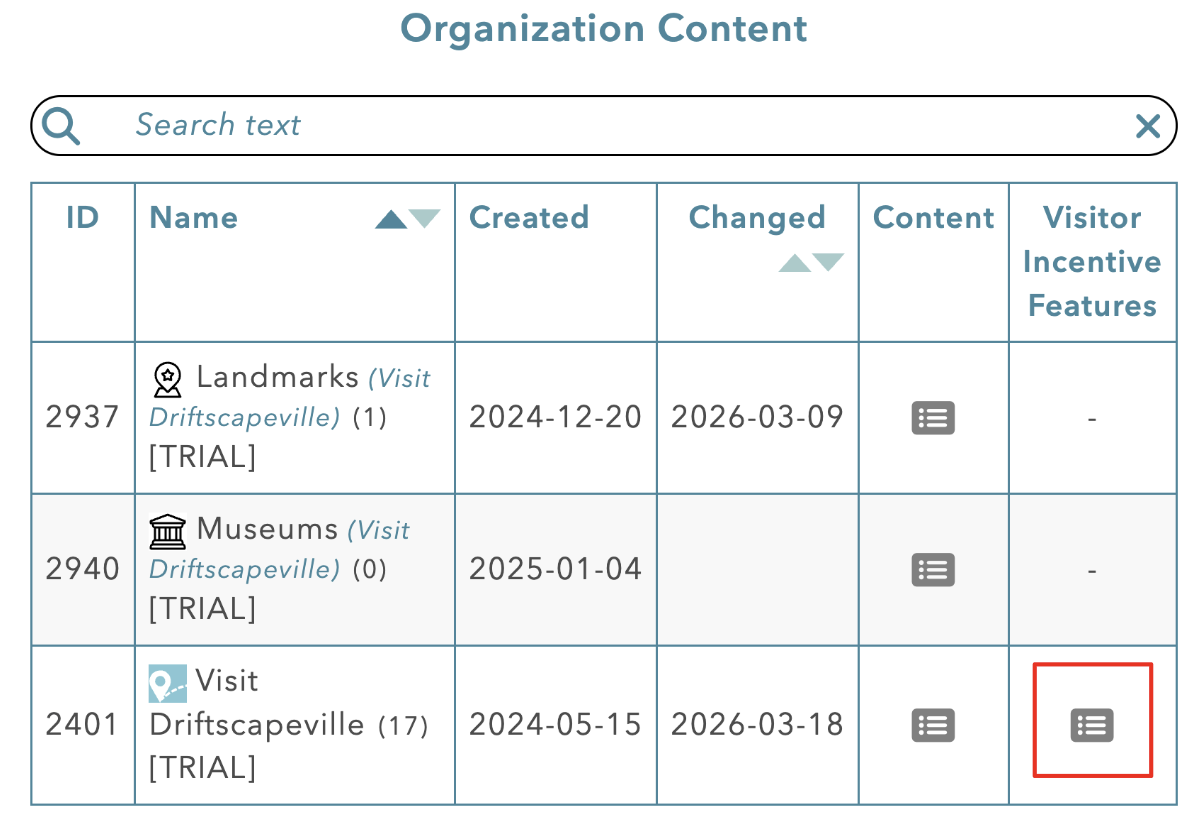
Login into the Driftscape CMS using your credentials. Then select the “Visitor Incentive Features” menu beside your organization’s name.
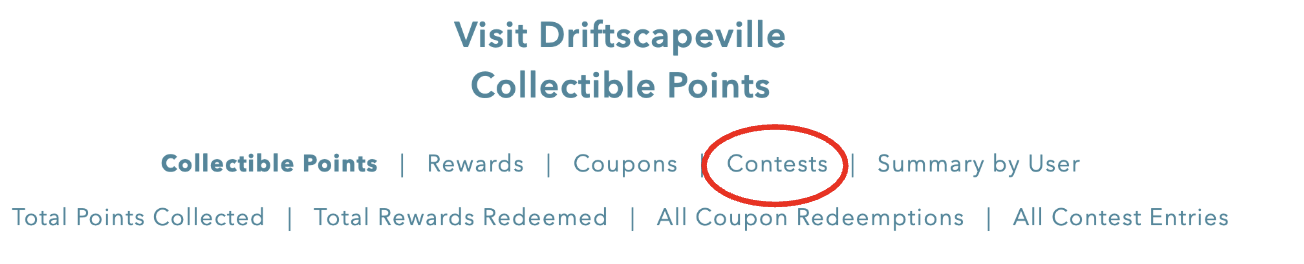
Next select the Contests tab in the top menu
Step 3: Add Your Contest
Each contest type is added in the same Contest Menu. However setup for each contest type will vary slightly. First select “Add A Contest” from the Contest Menu
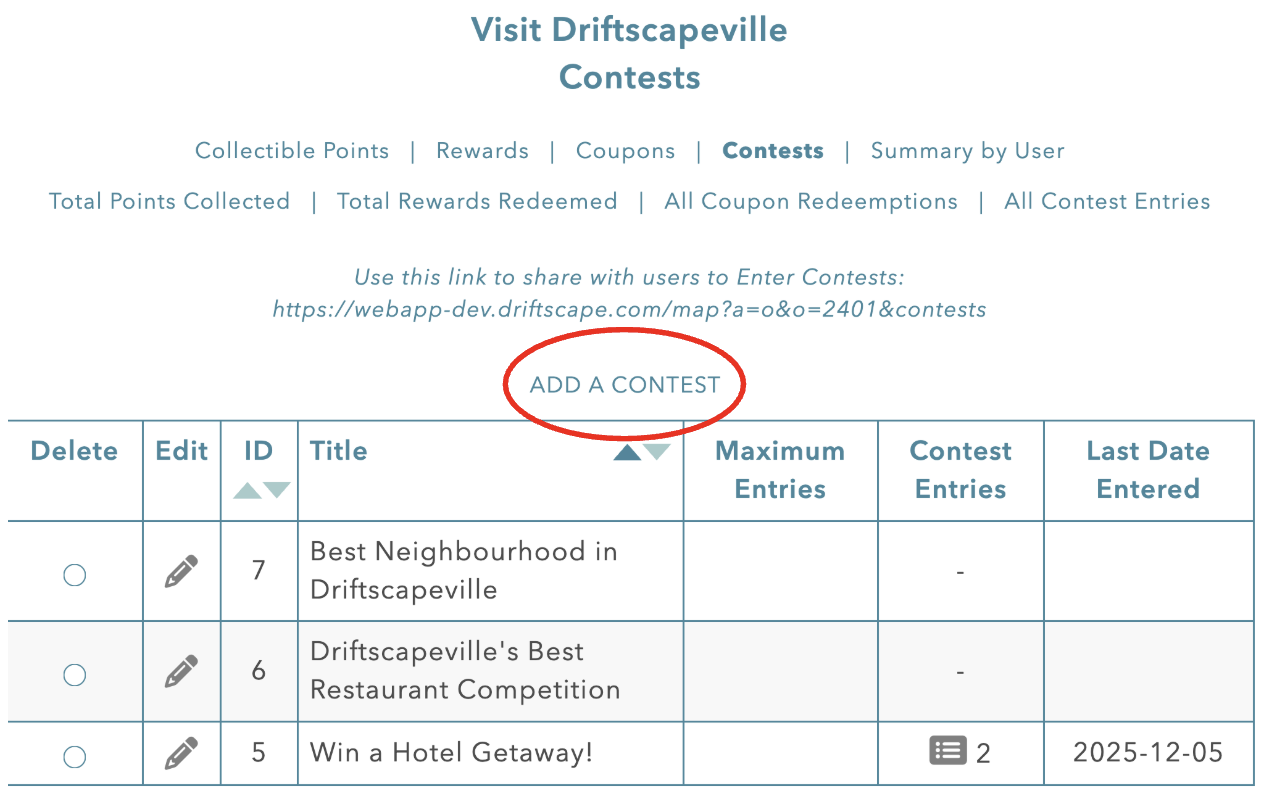
Then follow the instructions below for the type of contest you want to create.
Add a Prize Draw Contest
Prize draw contests allow visitors to enter into a draw, with a determined prize or giveaway. The details regarding each contest can be pre-determined by you. Follow these instructions to set up a Prize Draw Contest.
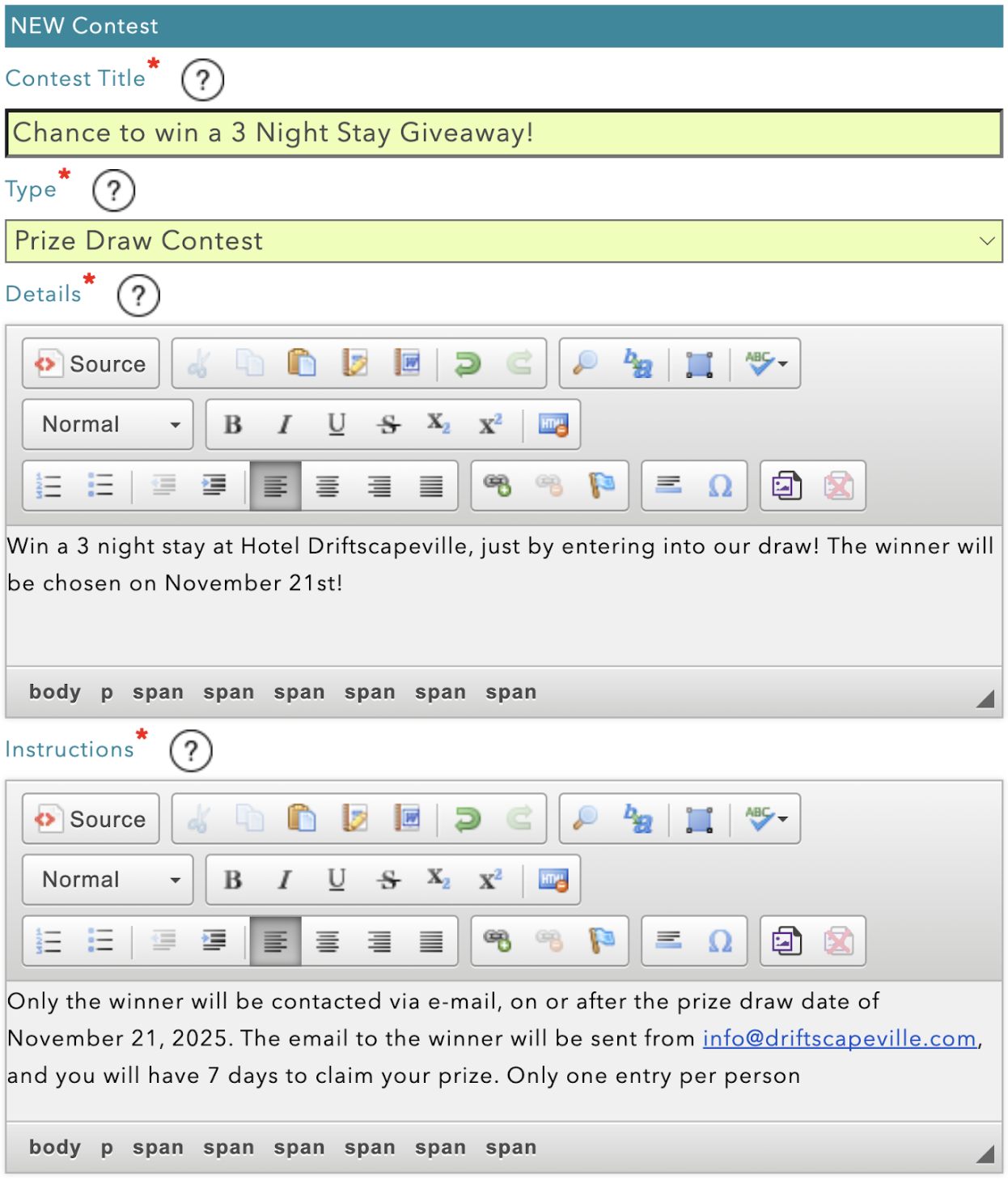
There are 4 required fields when setting up a Prize Draw Contest
Contest Title: A specific name that users will see in the app (eg. Chance to win a 3 Night Stay Giveaway!)
Type: Set this to “Prize Draw Contest”
Details: Explain what users can win and how (eg. Win a 3 night stay at Hotel Driftscapeville, just by entering into our draw! The winner will be chosen on November 21st!)
Instructions: Add detailed instructions on how prizes will be distributed (eg. Only the winner will be contacted via e-mail, on or after the prize draw date of November 21, 2025. The email to the winner will be sent from info@driftscapeville.com, and you will have 7 days to claim your prize. Only one entry per person)
The remaining fields are optional, but help customize the contest to suit your needs. Fill out all the fields your contest requires to run smoothly.
Extra Input Field: If Filled in, this will require users to add one additional field of information, with whatever you wish them to input. (eg. Phone #).
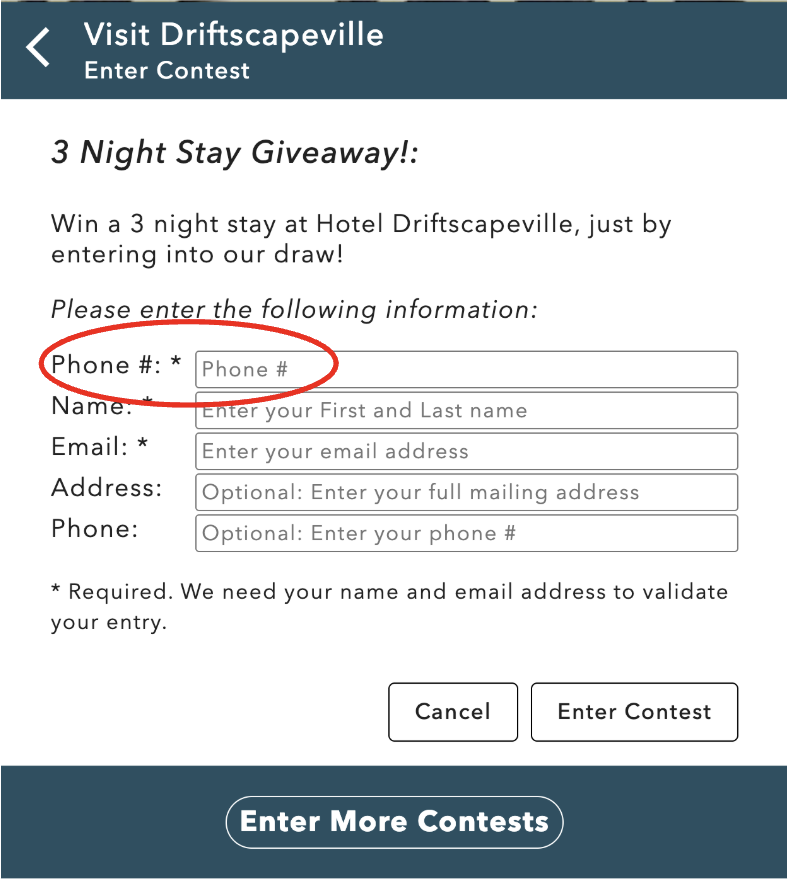 If left blank, this field will not show up to users.
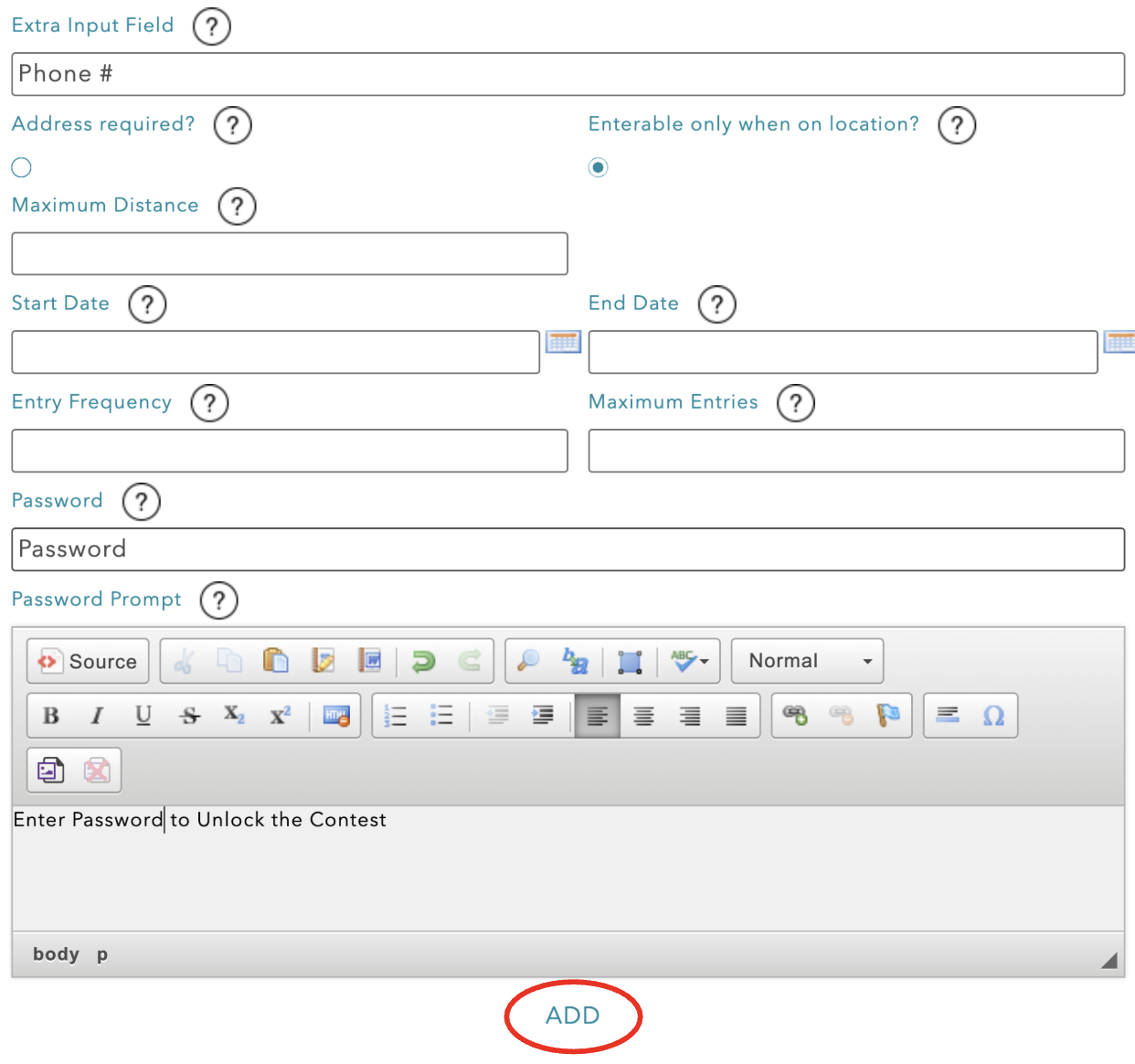
Address Required?: If selected, users will be required to add an address before entering the contest. Recommended if you plan on mailing the prize to the winner
Enterable only when on location?: If selected, users will only be able to enter the contest when at the location of the POI. Recommended to encourage additional visitors
Maximum Distance: The total number of Metres away a user can be to enter the contest. If left blank, 100M will be used. This field is only displayed when “Enterable only when only location” is selected when setting up the corresponding contest.
Start Date: Select the first day that users can enter the contest. If left blank, users will be able to enter the contest immediately upon publishing to a POI.
Start Time: Enter the time of day you want the Contest to be enterable. If left blank, the contest will be enterable starting at midnight that day
End Date: Select the last day that users can enter the contest. If left blank, users will be able to enter the contest until you deactivate it manually.
End Time: Enter the time of day you want the contest to stop being enterable. If left blank, the contest will stop being enterable at midnight (the beginning) of that day.
Times are based on the account's set timezone (configured when creating the account). To change your account timezone, please contact support@driftscape.com
Entry Frequency: Enter the number of days that must pass before a user can enter the contest again.
Leave blank if users can only enter the contest once per
POI. Set to 0 to allow unlimited entries per user
Maximum Entries: Enter the maximum number of entries for this contest from all users at all POI’s. If left blank, unlimited entries will be allowed.
Password: Use this field if you want to add a password to the contest
Password Prompt: Add a hint or clue that users will see when asked for the password. Or add “Enter Password to Unlock the Contest” if you don’t want to give any hints.
Once you’ve filled in all the fields required to run your contest, click update at the bottom of the page.
Once you’ve added your Prize Draw Contest, continue to step 3.
Add a POI Voting Contest
A POI Voting Contest allows users to vote for different POIs listed inside the Driftscape Application. When a user enters this type of contest, they can click on the button that reads “Vote for This” on the POI that they wish to vote for.
For example, a user accesses the POI Voting Contest “Vote for your Favourite Restaurant” while viewing “Joe’s Pizza Place” in the app. When they tap the button that reads “” one vote will be recorded for “Joe’s Pizza Place”.
You can associate this contest to every POI that is participating in the contest. Then users can vote for their preferred POI.
To setup a POI Voting Contest there are 4 required fields.
Contest Title: Give your contest a specific name, so users know what they’re entering (eg. Driftscapeville’s Favourite Restaurant Contest)
Type: Set the type to “POI Voting Contest”
Details: Explain to users what they’re voting for and any important details regarding the contest you’re running (eg. Vote for this restaurant now in the “Driftscapeville’s Favourite Restaurant Contest” and give them your support. Winners will receive a feature in next month’s newsletter)
Instructions: Add detailed instructions on how the winner will be announced (eg. Winner will be announced after entries close. Entries open until November 21, 2025. See our December newsletter to find out the winner.)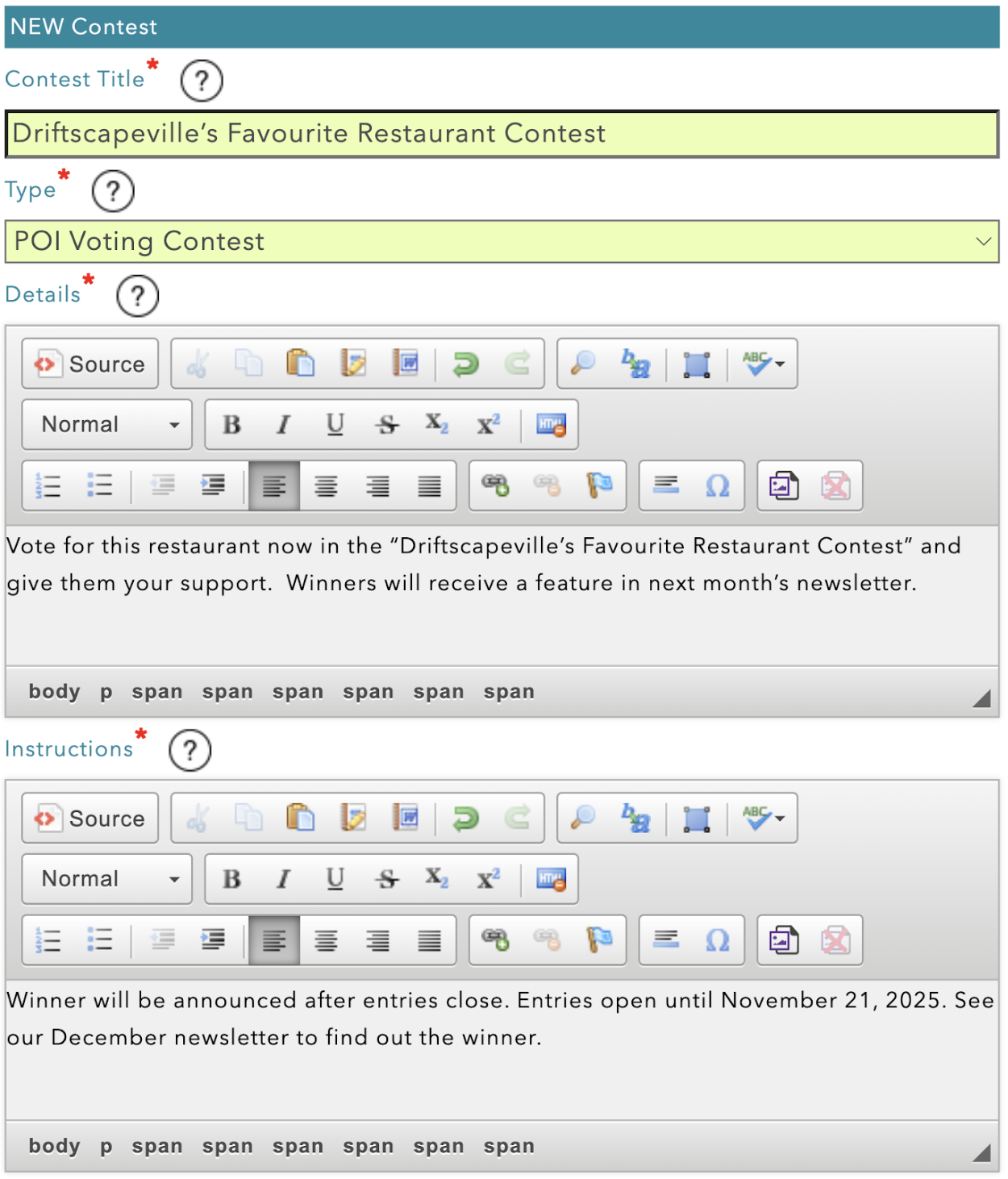
The remaining fields are optional, but will help customize the contest. Fill out every field required to make this contest suit your organization’s needs.
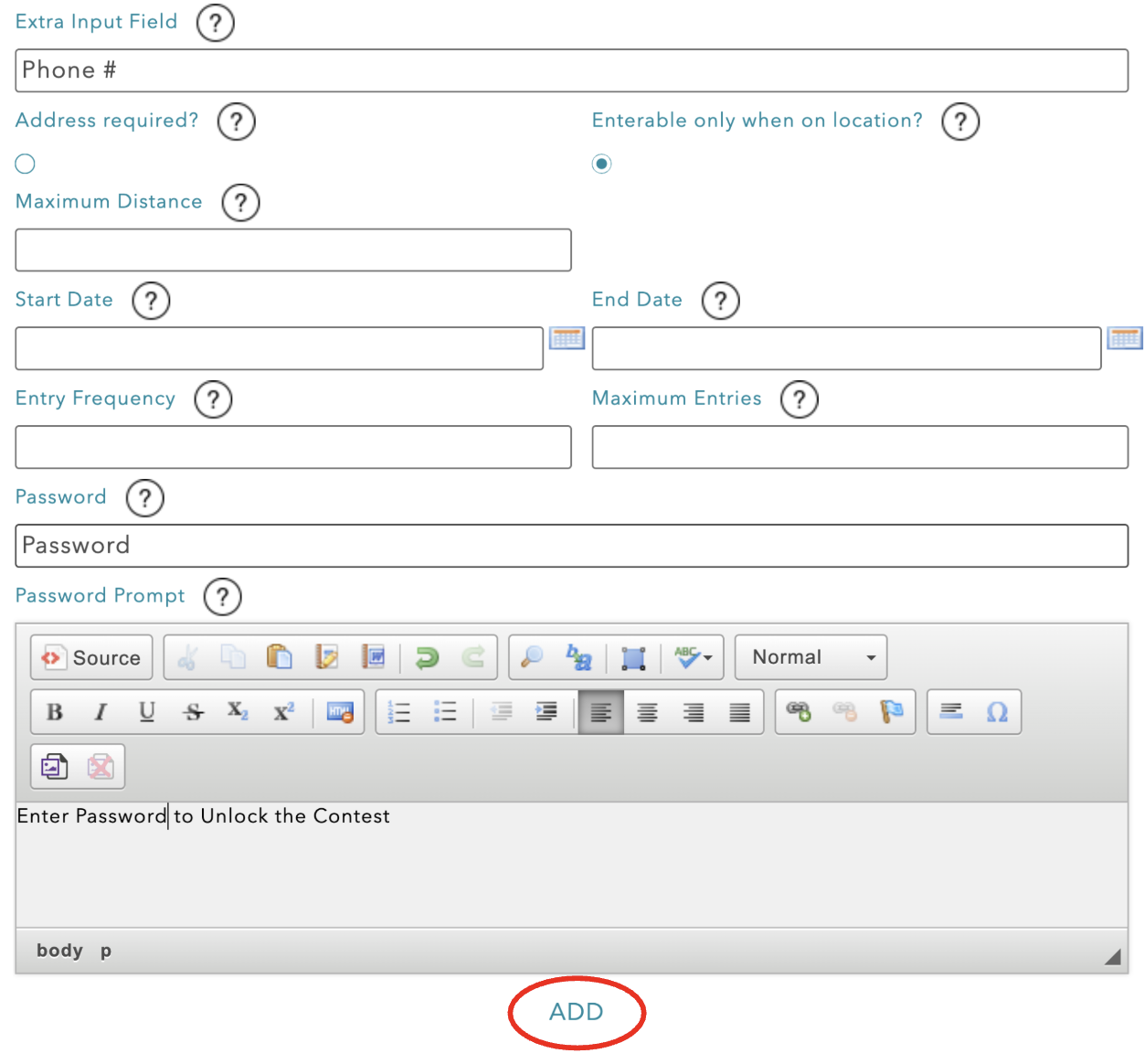
Extra Input Field: If Filled in, this will require users to add one additional field of information, with whatever you wish them to input. (eg. Phone #).
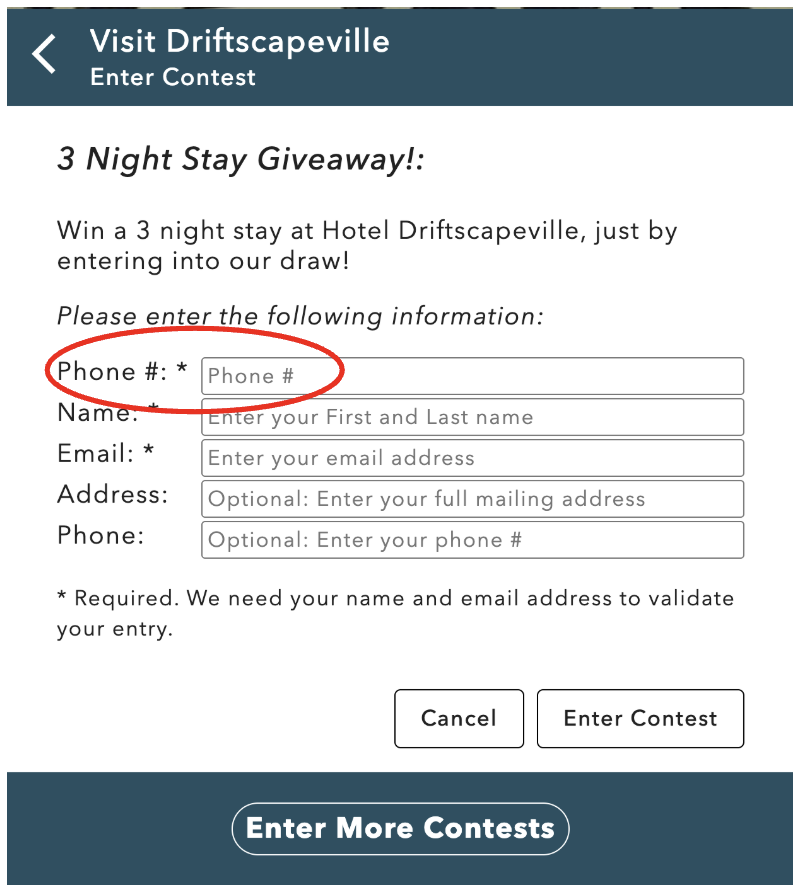
If left blank, this field will not show up to users.
Address Required?: If selected, users will be required to add an address before entering the contest. Recommended if you plan on mailing the prize to the winner
Enterable only when on location?: If selected, users will only be able to enter the contest when at the location of the POI. Recommended to encourage additional visitors
Maximum Distance: The total number of Metres away a user can be to enter the contest. If left blank, 100M will be used. Field only shows when “Enterable only when only location” is selected.
Start Date: Select the first day that users can enter the contest. If left blank, users will be able to enter the contest immediately upon publishing to a POI.
End Date: Select the last day that users can enter the contest. If left blank, users will be able to enter the contest until you deactivate it manually.
Entry Frequency: Enter the number of days that must pass before a user can enter the contest again.
Leave blank if users can only enter the contest once per
POI. Set to 0 to allow unlimited entries per user
Maximum Entries: Enter the maximum number of entries for this contest from all users at all POI’s. If left blank, unlimited entries will be allowed.
Password: Use this field if you want to add a password to the contest
Password Prompt: Add a hint or clue that users will see when asked for the password. Or add “Enter Password to Unlock the Contest” if you don’t want to give any hints.
Once you’ve filled in all the fields required to run your contest, click update at the bottom of the page.
Once you’ve added your POI Voting Contest, continue to step 3
Add a List of Voting Options Contest
A List of Voting Options Contest allows users to vote for a list of options, pre-determined by you. This allows you to collect valuable information from users, or create gamified voting experiences for your organization.
To setup a List of Voting Options Contest, there are four required fields.
Contest Title: Provide a unique public name for your contest that users will see in app (eg. Vote to Rename this Park!)
Type: Set this to “List of Voting Options Contest”
Voting Options: Add your list of options that users can vote for. Ensure you add one option per line.
(eg.
Downtown Driftscapeville Park
Oak Park
Christina McGill Park)
Details: Give users a description of the contest, including what they’re voting for. (eg. Vote to rename this park! Every user can vote once per day, as long as they visit the park. The winning name will be selected on November 21, 2025)
Instructions: Add detailed instructions on how the winner will be announced (eg. Winner will be announced after entries close. Entries open until November 21, 2025. See the December Newsletter or Social Media to find out the new park name!)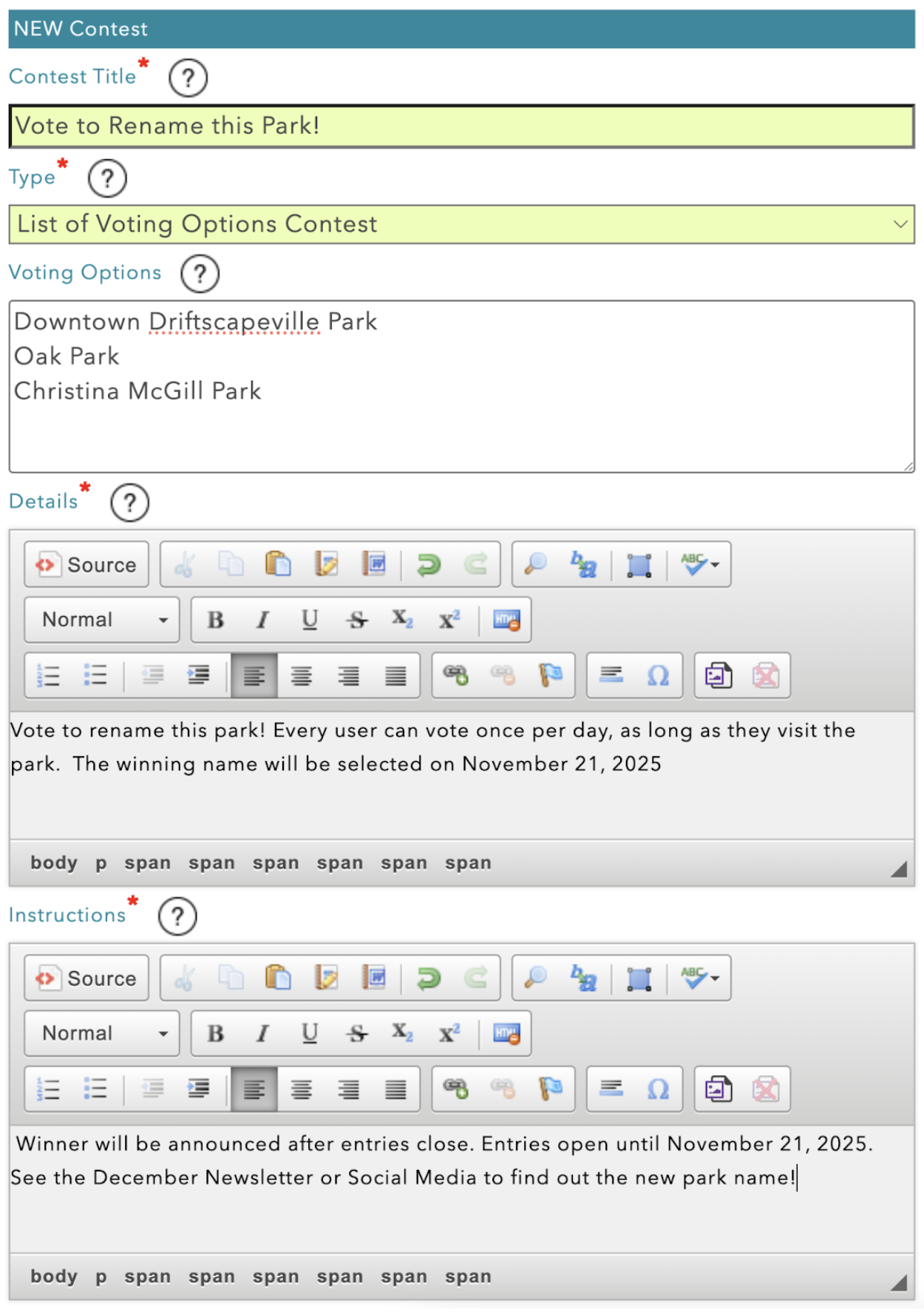
The remaining fields are optional, but will help customize the contest. Fill out every field required to make this contest suit your organization’s needs.
Extra Input Field: If Filled in, this will require users to add one additional field of information, with whatever you wish them to input. (eg. Phone #). 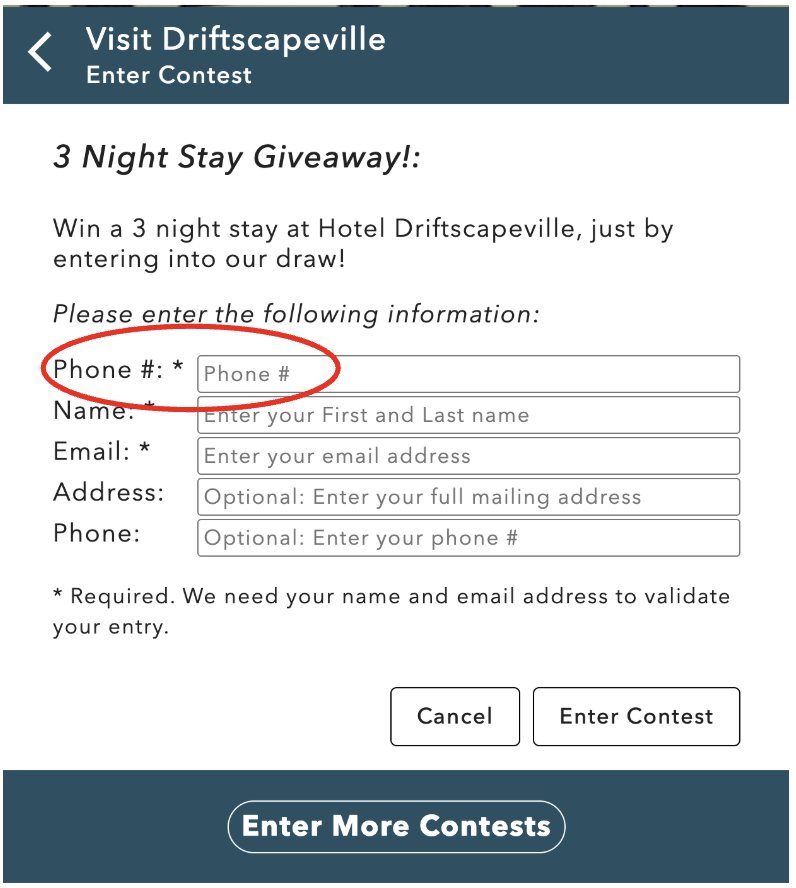
If left blank, this field will not show up to users.
Address Required?: If selected, users will be required to add an address before entering the contest.
Enterable only when on location?: If selected, users will only be able to enter the contest when at the location of the POI. Recommended to encourage additional visitors
Maximum Distance: The total number of Metres away a user can be to enter the contest. If left blank, 100M will be used. Field only shows when “Enterable only when only location” is selected.
Start Date: Select the first day that users can enter the contest. If left blank, users will be able to enter the contest immediately upon publishing to a POI.
End Date: Select the last day that users can enter the contest. If left blank, users will be able to enter the contest until you deactivate it manually.
Entry Frequency: Enter the number of days that must pass before a user can vote in the contest again.
Leave blank if users can only enter the contest once per
POI. Set to 0 to allow unlimited votes per user
Maximum Entries: Enter the maximum number of entries for this contest from all users at all POI’s. If left blank, unlimited entries will be allowed.
Password: Use this field if you want to add a password to the contest
Password Prompt: Add a hint or clue that users will see when asked for the password. Or add “Enter Password to Unlock the Contest” if you don’t want to give any hints.
Once you’ve filled in all the fields required to run your contest, click update at the bottom of the page.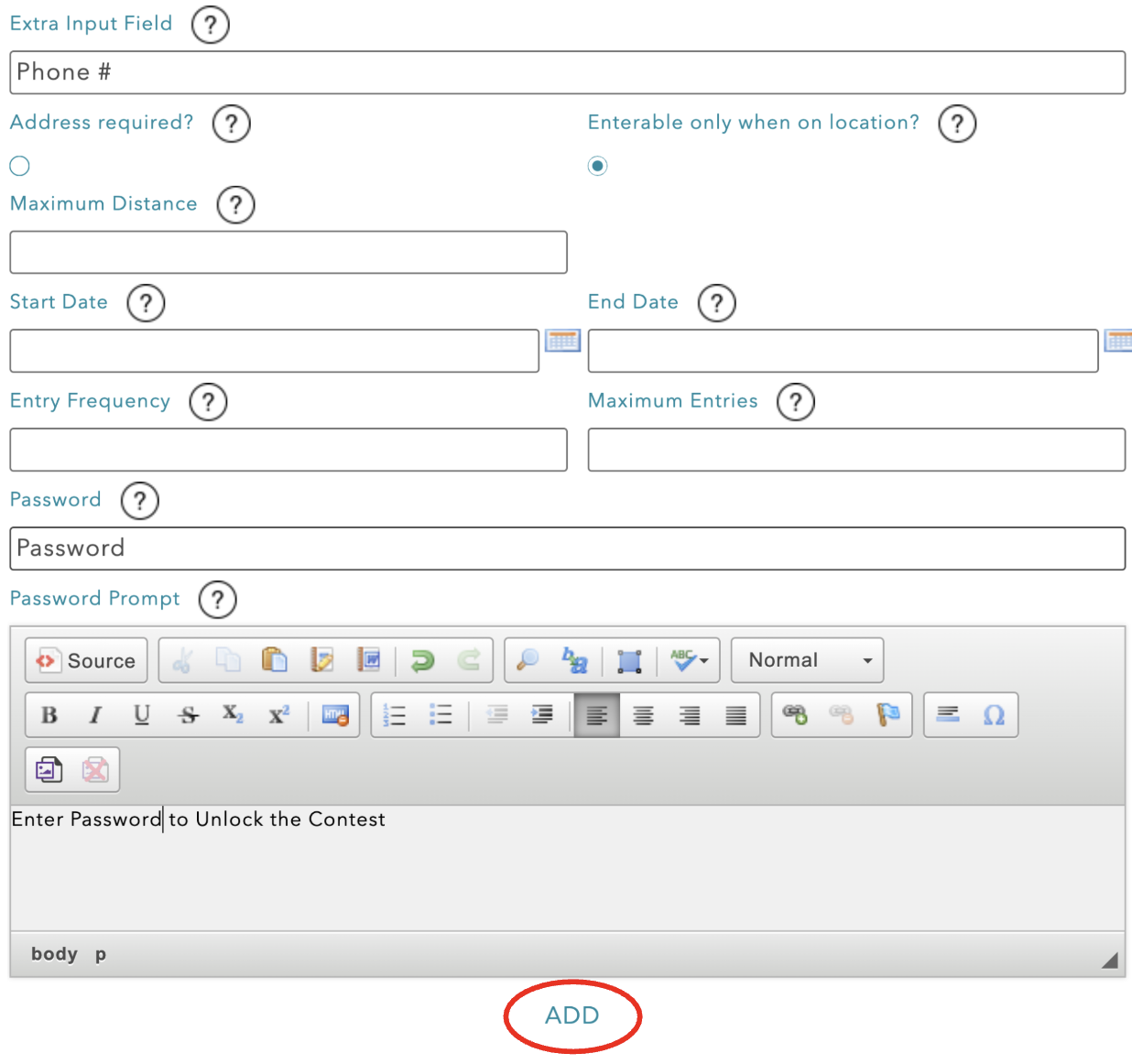
Once you’ve added your List of Voting Options Contest, continue to step 3
Step 4: Add your Contest to a POI
Once you’ve created your contest in the CMS, you need to publish it to the application. Contests appear on Points of Interest, as well as inside your organization menu. Contests that are not “enterable only when on location” can be entered immediately through this menu. All other contests need to be associated with at least one POI before they can be entered.
To add your contest to a POI, navigate to the “Org Content” page, using the top right menu in the CMS.

Select the “content” tab, beside your organization.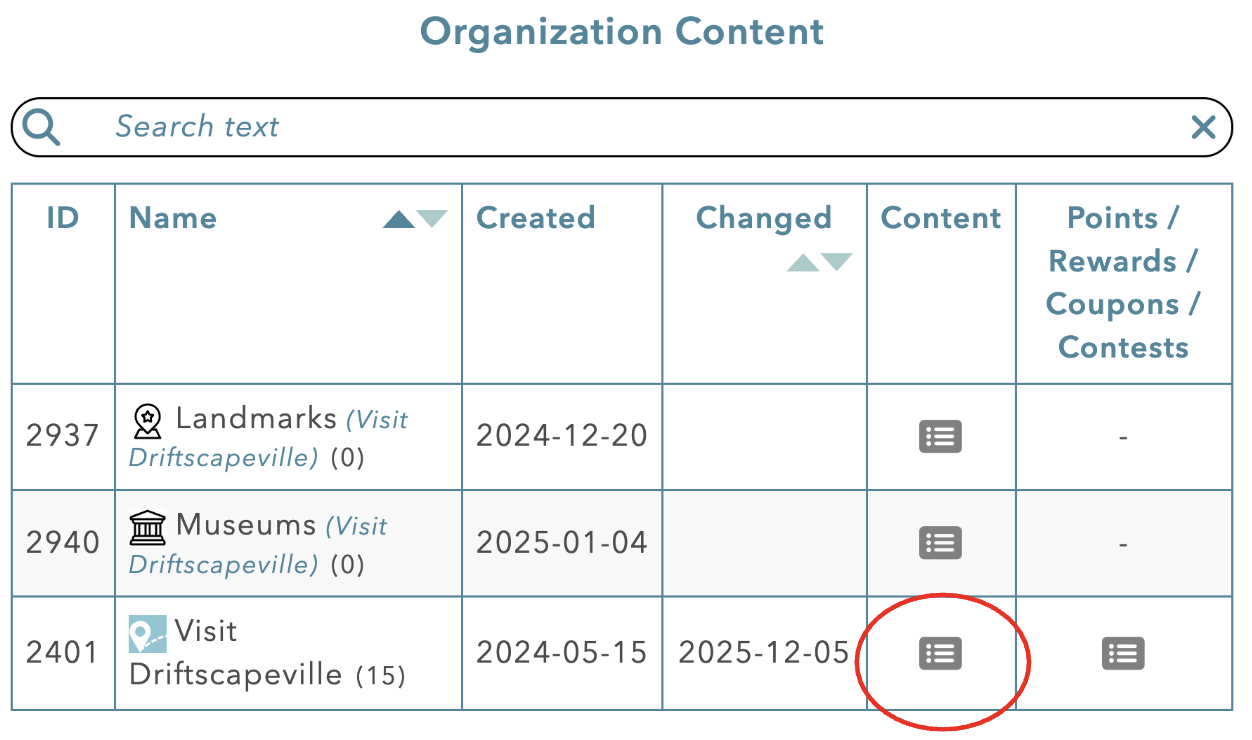
In the table of POI’s, select the edit Icon beside the POI you want to add this contest to
At the bottom of the edit menu, use the “Contest” selector to choose the contest you want to associate with this POI.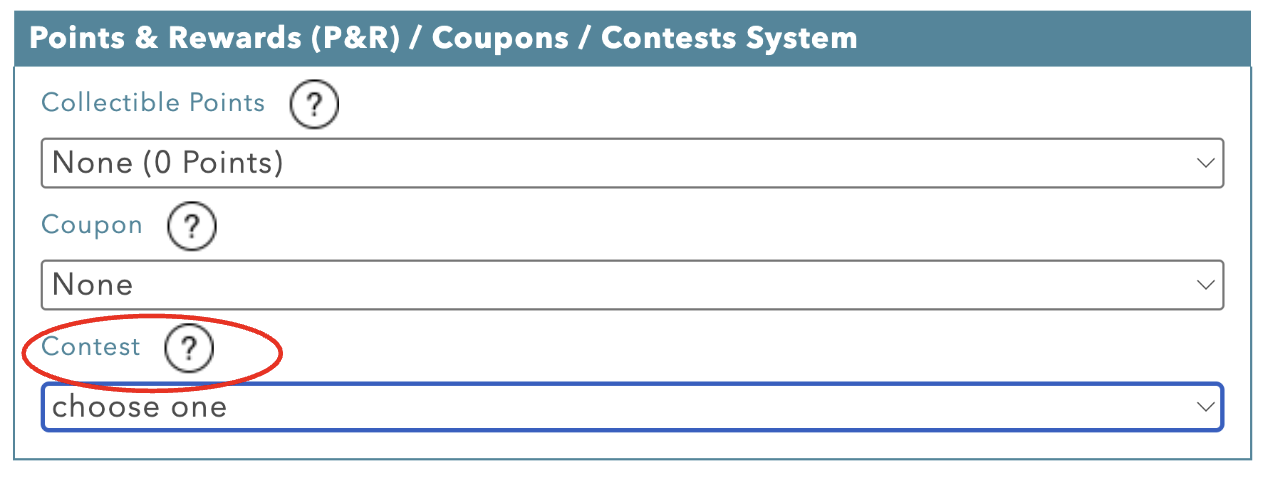
If the option “choose one” is selected, the POI will only show a contest once you have created one associated with your organization(see step 4).
If the option “none” is selected, the POI will not show any contest. Even if the organization has contests associated with it.
Once you’ve chosen the contest you wish to assign to this POI, click “UPDATE” at the bottom of the page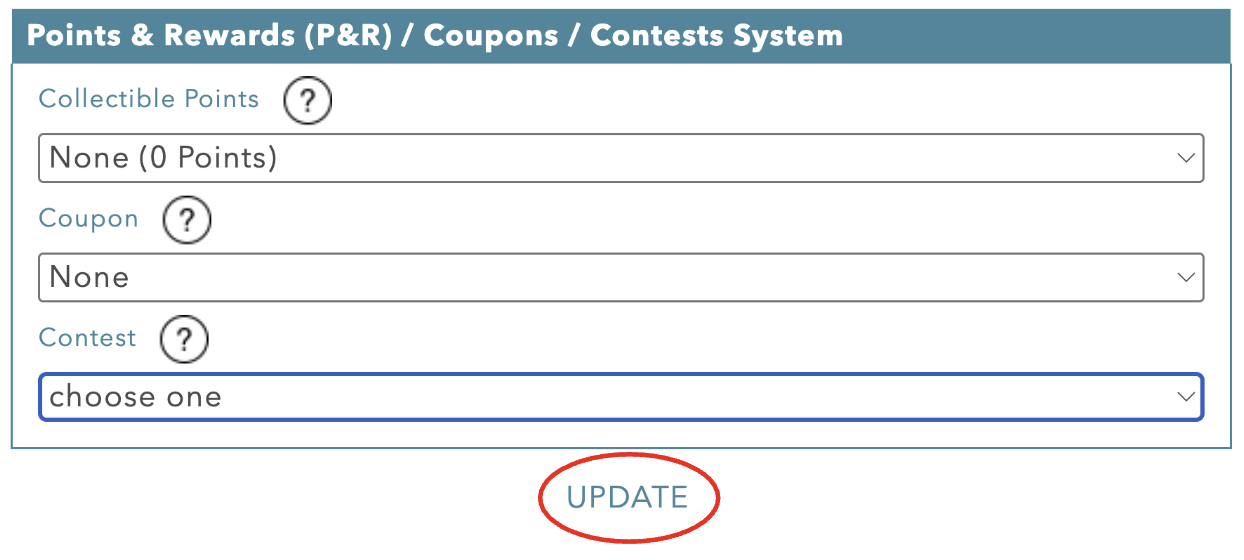
Once saved, the “enter contest” button will appear below the POI Description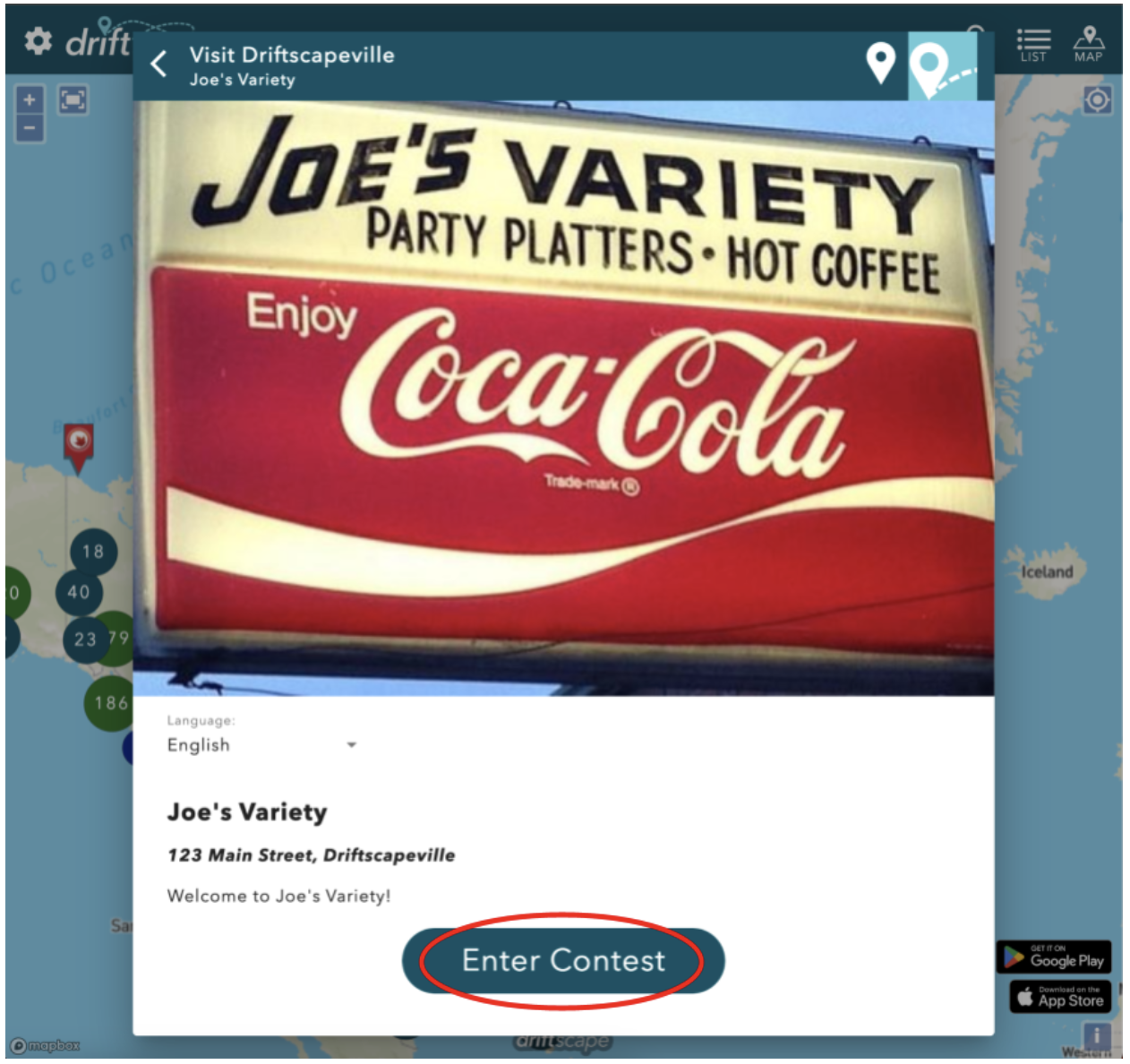
Step 5: Assign a Contest to your Organization or Sub-Organization (Optional)
Along with assigning contests to individual POI’s you can assign one contest to every POI inside of your organization or a sub-organization. This is especially useful if you’re collecting user feedback through a “List of Voting Options Contest”. Or if you have a sub-organization of businesses all being listed in the same “POI Voting Contest”.
Note: When you assign a contest at the Organization level, as well as the POI level the POI contest will be used as default. This is the same if you assign a contest to a sub-organization and parent organization, the sub-organization will be used as the default (unless the POI also has a contest, in which case the POI is always default).
In order to assign a contest to an organization or sub-organization, navigate to the “org properties” page using the top right menu.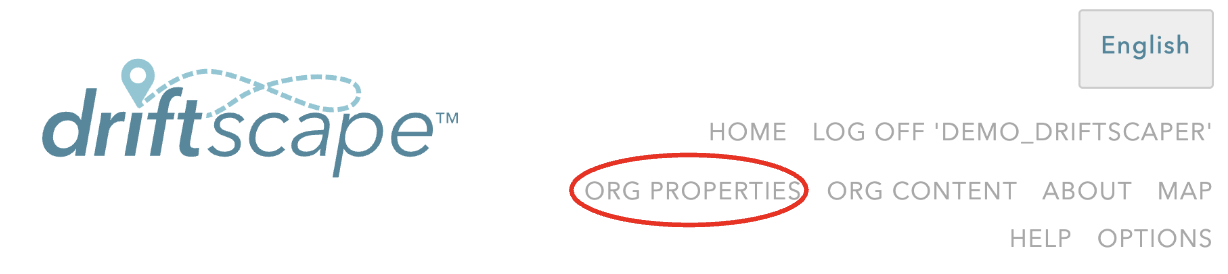
Then select the edit button beside the organization, or sub-organization you want to assign your contest to. 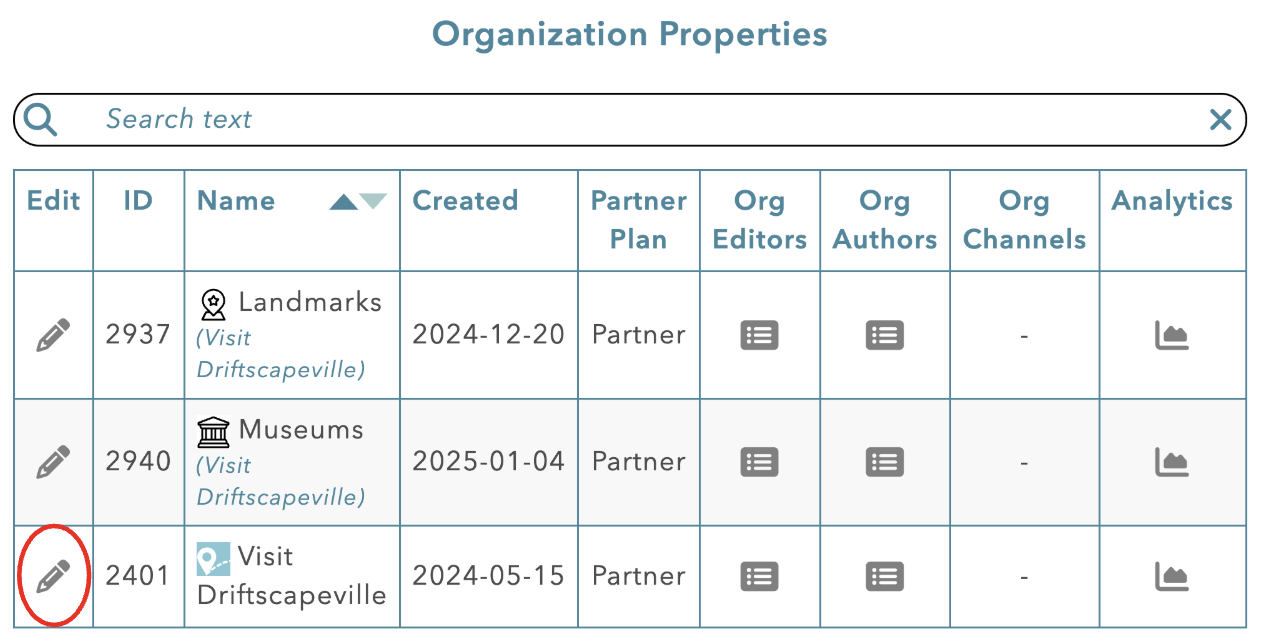
Near the bottom of the editor you will find the “Offer a contest at all of your POIs?” selector. Use this to choose the contest you want to associate with this organization.
The contest will appear in every POI associated with this organization, unless there is a contest associated at the POI level.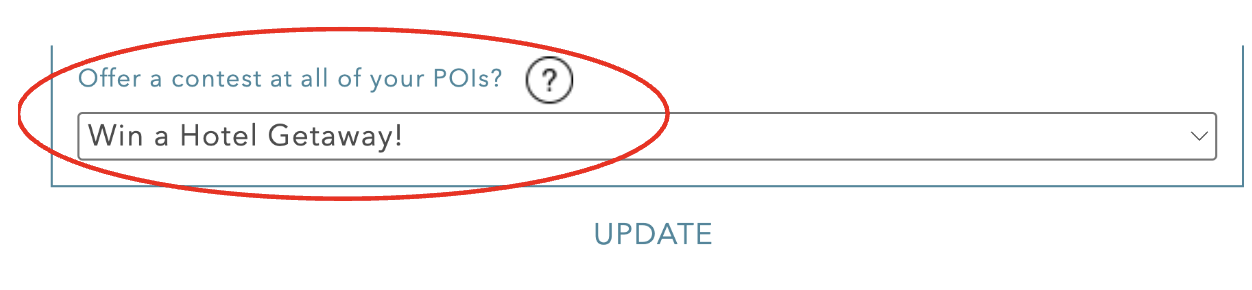
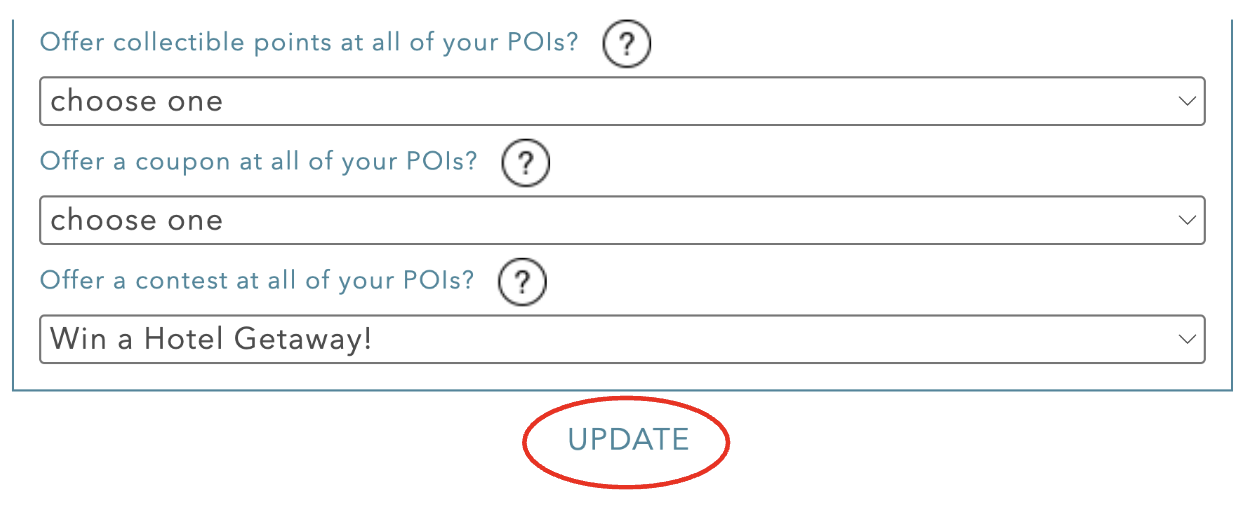
Once you’ve chosen the contest, select “UPDATE” at the bottom of the page
Step 5a: Removing a Contest from one POI in an Organization
If you have chosen to assign a contest to every POI in your organization, but wish to hide the contest or show a different contest on a specific POI. Follow these steps.
Navigate to your “ORG CONTENT” page and find the POI you wish to hide or change the contest for. Then select the edit button beside that POI.

Find the “Visitor Incentive Features” menu, near the bottom of the edit page. By default, all POIs will display “choose one” in the “contests” drop down menu. If “choose one” is selected, the contest associated with this POI’s organization will be displayed on the POI.
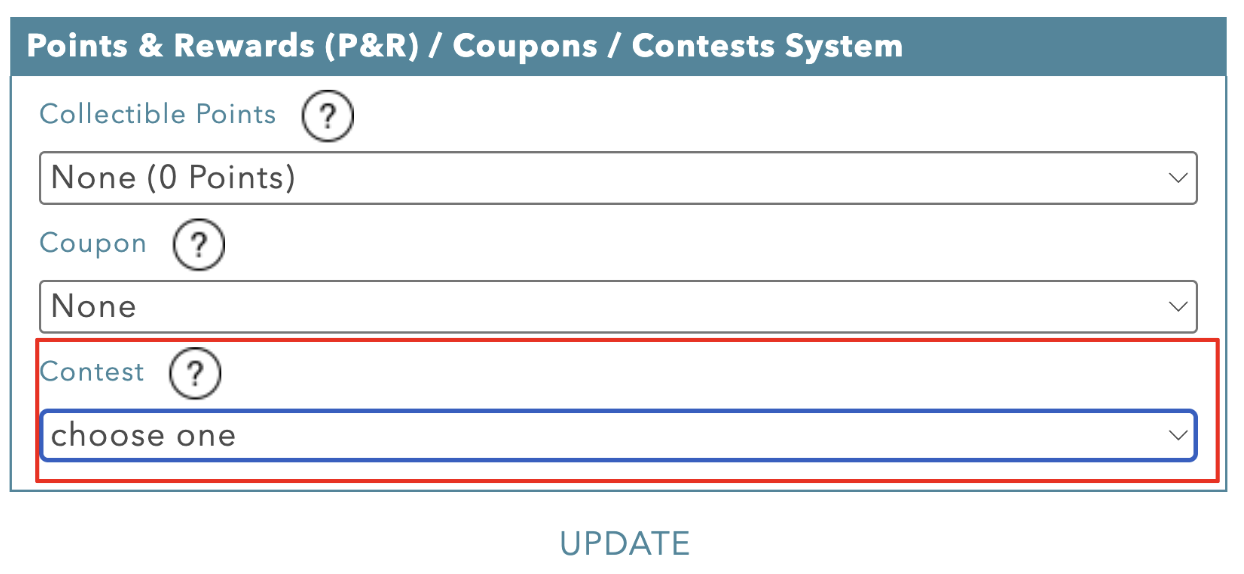
To hide the contest associated with the organization, use the drop down menu and select “none”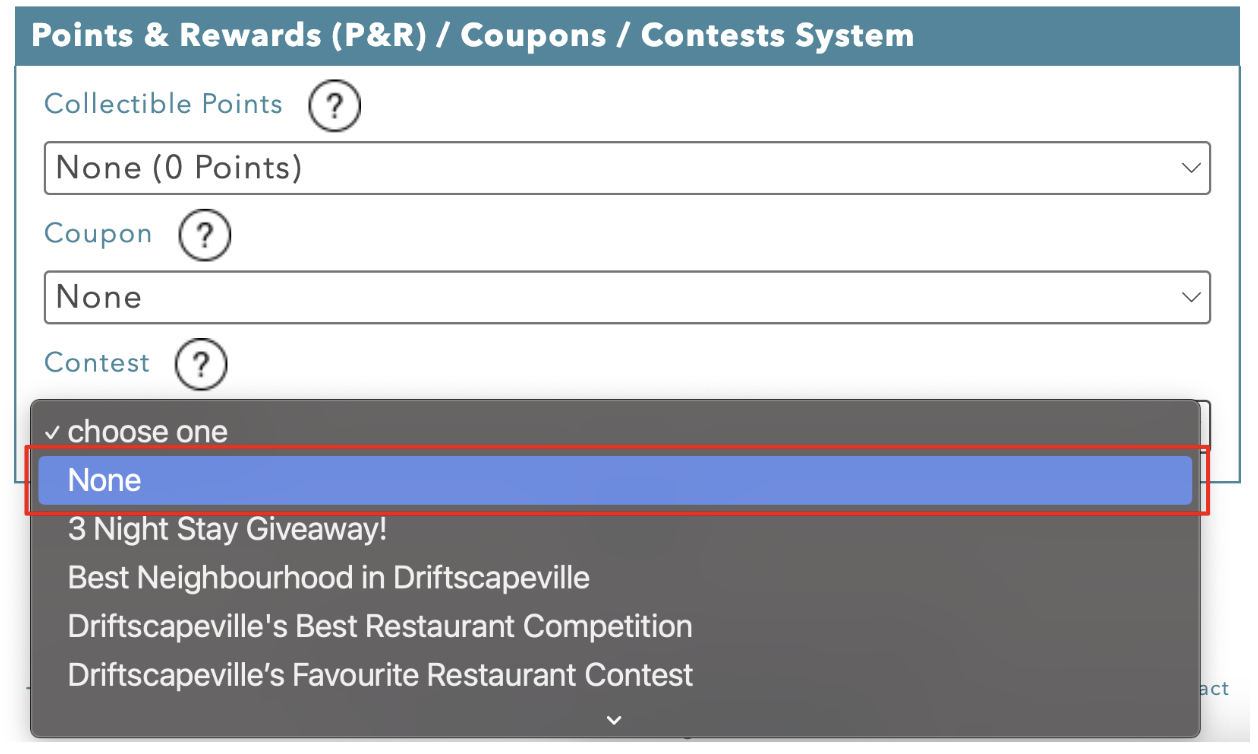
Alternatively, you can select another contest your organization has published. This will show the contest selected at the POI level, instead of the contest associated with the organization.
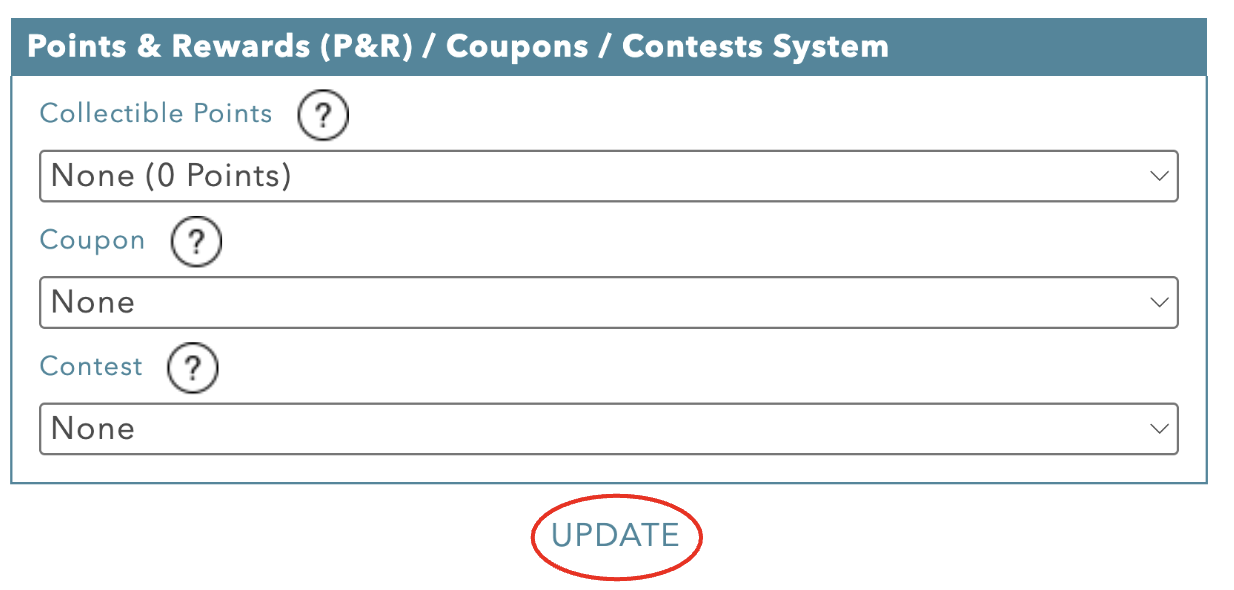
Once you have selected either “choose one” (displays the contest associated with the organization), “none” (displays no contests on this POI) or another contest (displays the contest chosen at the POI level), click “UPDATE” at the bottom of the page.
Step 6: Access Your Contest Entries
Once you’ve published your contest, you’ll be able to see the entries inside the Driftscape CMS. To access your contest entries, navigate to the “Org Content” page, using the top right menu
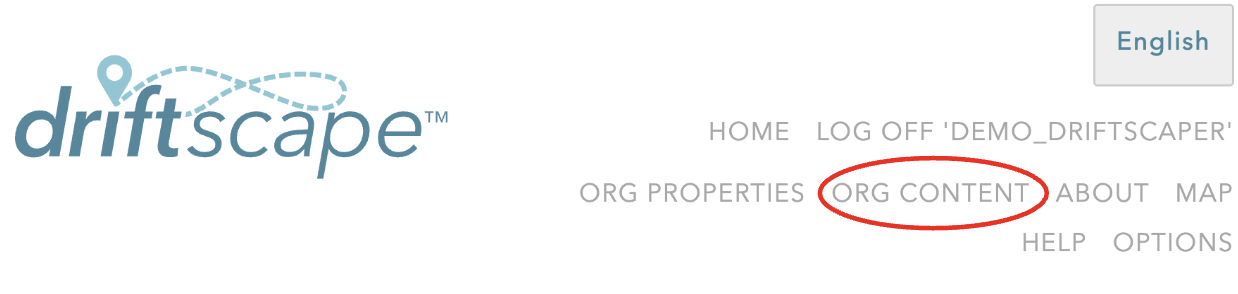
Then select the “Visitor Incentive Features” menu beside your organization name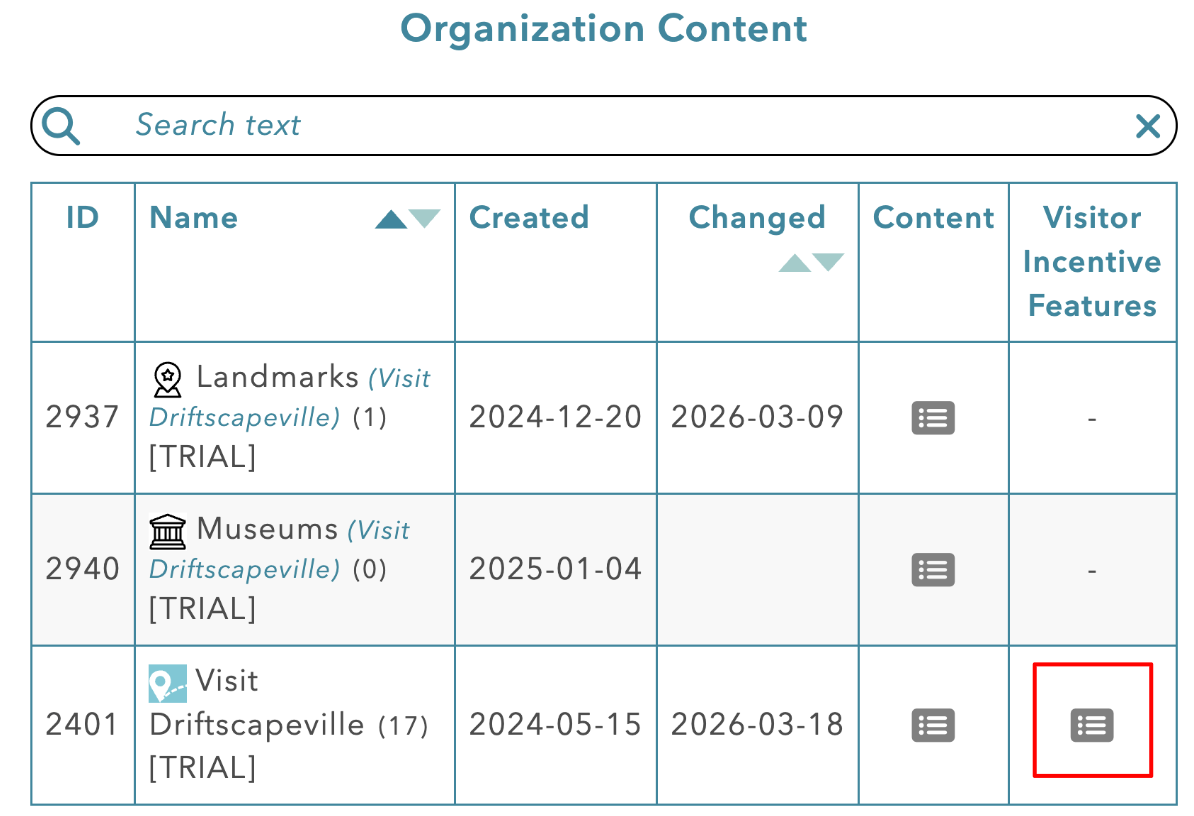
On this page’s menu, select the “All contest Entries” tab
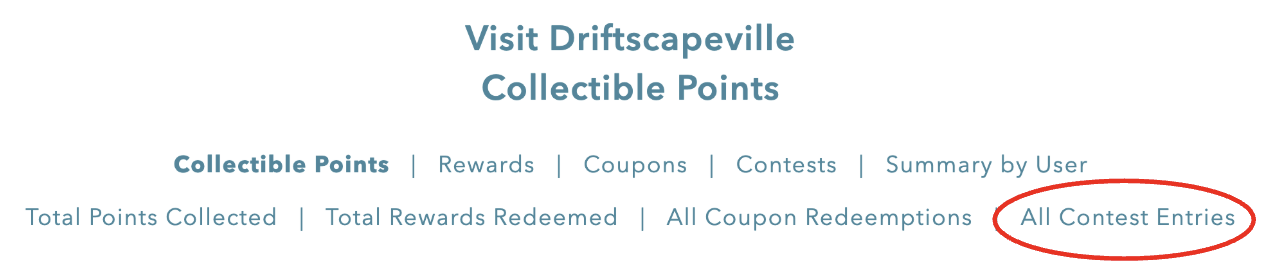
In the “All Contest Entries” tab, you will find a spreadsheet with every entry made to each of your contests. For easiest viewing it’s recommended to export your data to a .CSV file using the “SAVE RESULTS AS CSV FILE” button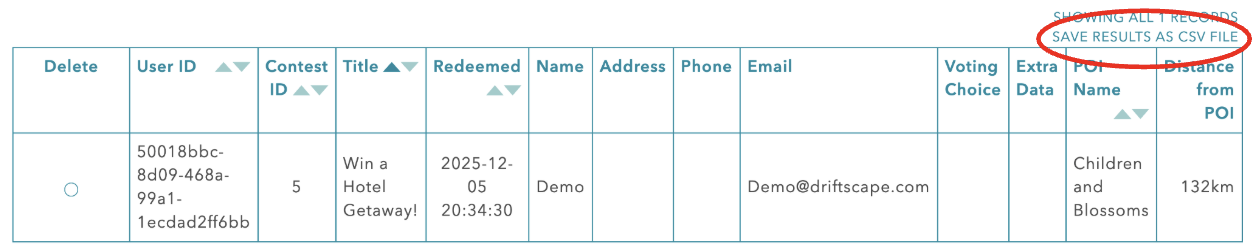
This will export the data to a CSV for you to view in any spreadsheet software you’re comfortable using. Otherwise, data can also be viewed directly from the CMS.
Inside this table, you will find several pieces of data important to running your contest…
User ID: This is the unique identifier every driftscape user has and can be used for tracking multiple entries
Contest ID: This tells you which contest the entry is from. This is especially important when hosting multiple contests, as you will need to split draw entries based on their respective contest ID.
Each contest ID can be found beside the contest title of the “contests” menu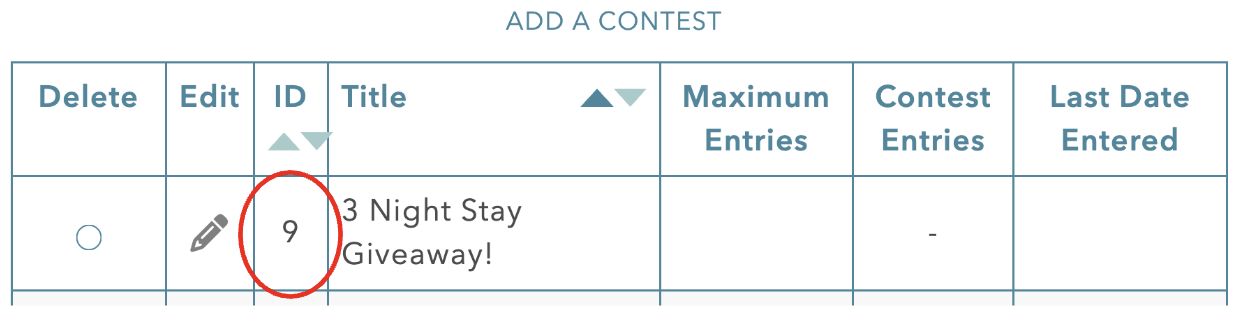
Contest Title: Tell you which contest this entry is from. This is especially important when hosting multiple contests, as you will need to split draw entries base on their respective contest.
Redeemed: This is the date and time that this entry was added to the contest
Name: The users name, provided by the user when entering
Address: The user’s address, provided by the user when entering
Email: The user’s email address, provided by the user when entering
Voting Choice: The choice made by users when entering (only pertains to “List of Voting Options Contests”)
Extra Data: This column will be filled if you required users to fill out the “extra input field” when setting up your contest
POI Name: The POI used to access this contest/voted for during a “POI Voting Contest”. Especially important when hosting a “POI Voting Contest as this dictates which POI the user voted for
Distance from POI: The total distance the user was from the given POI when entering your contest
Using this data, you can see all of the entries for each contest. Once your contest is completed, you’ll be able to determine your winner based on the data provided.
Step 7: Determine the Contest Results
Once your contest has been completed and you’ve collected all of your entries, it’s important to determine the results of the contest. To determine the results follow these steps using the “All Contest Entries” page, or your exported CSV file of data.
Prize Draw Contest Results
The Driftscape CMS does not conduct the prize draw for your organization. Once you’ve received your entries, you will need to manually conduct a draw either physically or using an online software.
To retrieve all the entries for your draw, use the “Title” “Name” and “Email” fields. 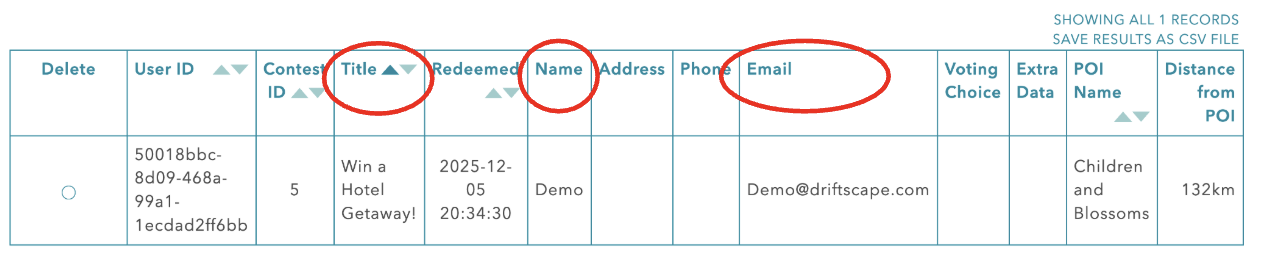
The “Title” field will verify that the entry is for the contest you’re conducting a draw for. Ensure you only use entries from the contest you’re selecting the winner from.
For each entry in the contest, add the name and email address to your physical draw or digital drawing software.
Once all entries have been added to your draw, conduct the draw and contact the winner.
You can also use phone number or address, instead of email, if you required users to fill out this information.
POI Voting Contest Results
POI voting contests are determined using the “Title” field and the “POI Name” field in your data Table
The “Title” field will determine whether the entry is for the contest you’re judging. The “POI Name” provides 1 vote for that specific POI.
To determine the results, use only the specified contest title you’re judging. Then give the specified POI one point for every contest entry associated with that contest.
List of Voting Options Results
To determine the results of your List of Voting Options contest, you will have to use the “Title” and the “Voting Choice” fields of your contest data.
Use the title to ensure you’re only tallying votes inside of the contest title you’re judging.
The voting choice field determines what choice the user made when entering the contest. By tallying the number of votes for each choice, you’ll determine the winner of the contest.
Step 8: View your Communication Opt-Ins
From the “Visitor Incentive Menu” select the “Opt-Ins” page.
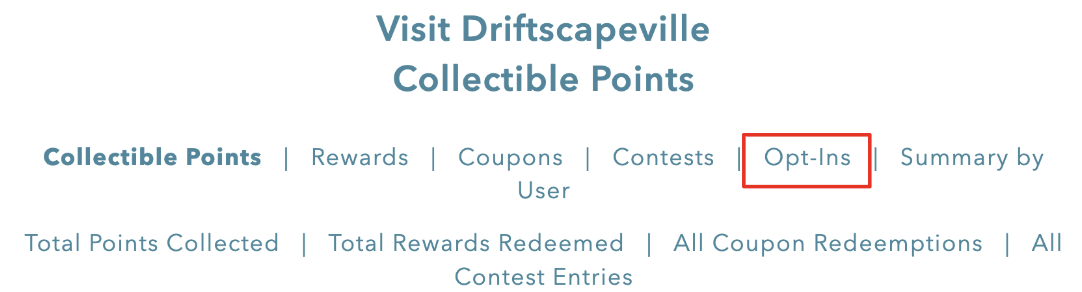
This will display a list of all the users who have chosen to opt-in to your agreement.

You can view the Agreement they’ve selected (this could vary if you’ve changed the Opt-In Prompt text from step 1).
As well as view the contact information from the user.
To view this information as a spreadsheet file, select “SAVE RESULTS AS CSV FILE” at the top right corner of the table
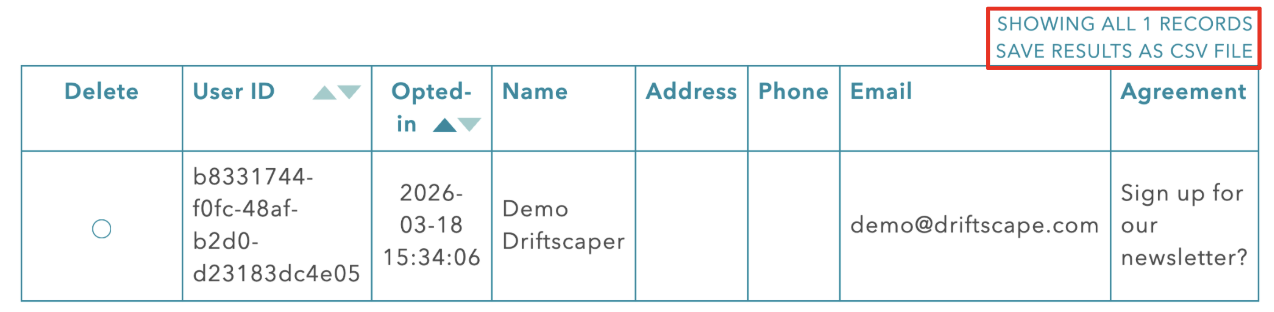
This will download your date to a .csv which can be read by most spreadsheet software (ie. Google Sheets, Microsoft Excel)
Related Articles
How To Enable Location Permissions on my Mobile Browser
Was this article helpful?
That’s Great!
Thank you for your feedback
Sorry! We couldn't be helpful
Thank you for your feedback
Feedback sent
We appreciate your effort and will try to fix the article