TABLE OF CONTENTS
Examples of Use Cases for AiListings
Use Case 1: Adding Local Businesses for Tourism
Use Case 2: Building a Public Map Layer for Visitors
Use Case 3: Organizing Businesses in Sub-Organizations
Get Started: Adding AiListings
Step 1: Access the Driftscape Content Management System
Step 2: Choose the Organization or Sub-Organization you want to add your AiListing to
Step 3: Add Your AiListing To the Organization
Add Optional Information as Desired
Step 5: Verify the AiListing is Correct
AiListings let you quickly add businesses using AI-generated content. This helps you build rich maps and guides without having to manually research and write descriptions. AiListings can be added to any layer or sub-layer, depending on how you want to organize your content.
What is an AiListing?
An AiListing is a business record that is created using AI. Instead of entering all the details yourself, the system gathers public online information and generates your content in the CMS.
AiListings help organizations save time by turning online data into ready-to-use listings inside of Driftscape.
Examples of Use Cases for AiListings
AiListings are useful in many different situations. Below are a few examples of how they are commonly used.
Use Case 1: Adding Local Businesses for Tourism
A tourism board wants to showcase restaurants, shops, breweries, and attractions. Instead of writing content manually, they can generate AiListings and then refine them as needed.
Use Case 2: Building a Public Map Layer for Visitors
A city or BIA wants to offer a public map of businesses. AiListings allow them to quickly populate accurate listings without having to track down descriptions and details on their own.
Use Case 3: Organizing Businesses in Sub-Organizations
Organizations with multiple neighborhoods, zones, or districts can add AiListings to each sub-organization. This makes it easier to maintain content by area without needing categories.
Get Started: Adding AiListings
Below are the steps to add a new AiListing inside the Driftscape CMS
Step 1: Access the Driftscape Content Management System
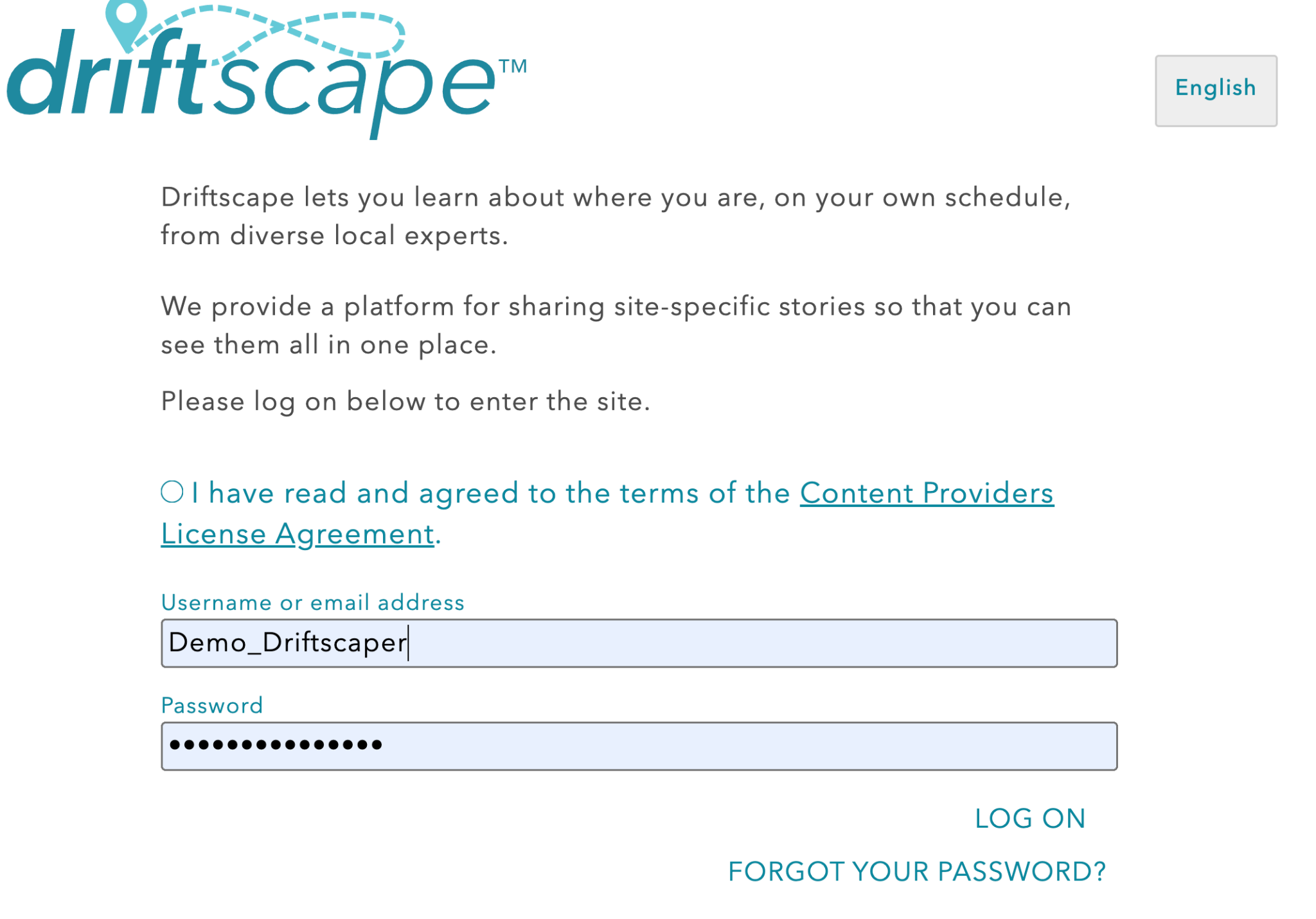
Navigate to cms.driftscape.com and login using your credentials
Step 2: Choose the Organization or Sub-Organization you want to add your AiListing to
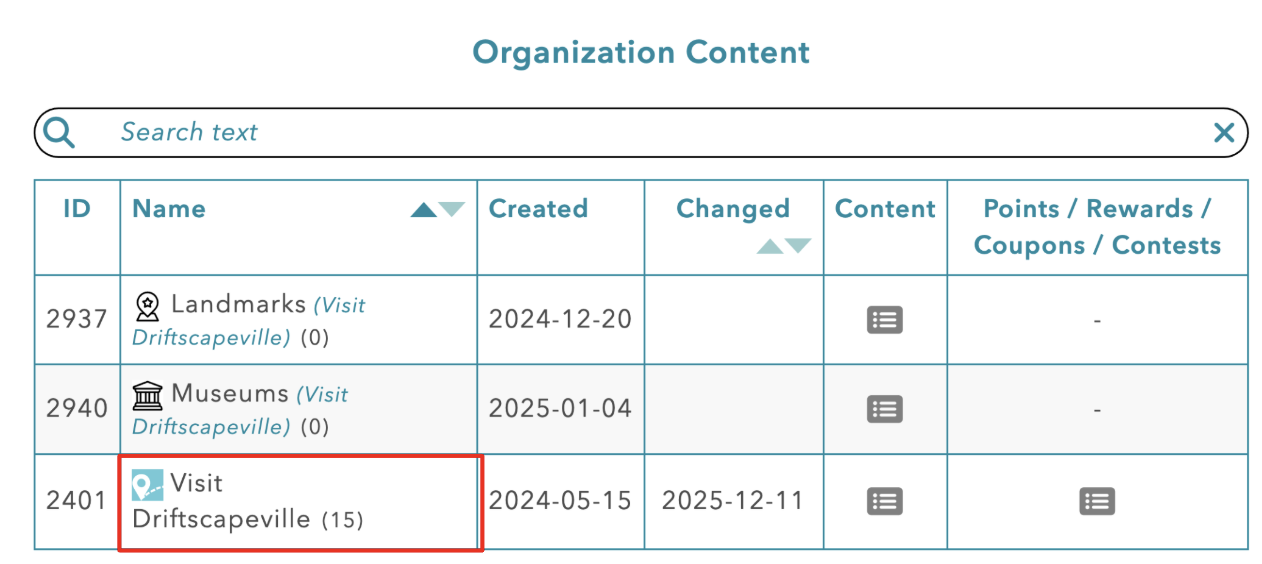
In the “ORG CONTENT” section of the CMS, click the title of the organization you want to add your AiListing(s) to
Step 3: Add Your AiListing To the Organization
Select the “Add AiListing” button at the top of the page

Fill in all required fields
For simplicity, the only required field that isn’t filled in by default is the AiListing Business Name. For most businesses you will only need to add the business name and click “UPDATE”. There are other customization options available, which are listed below.
AiListing Business Name: Add the name of the business you are listing to the CMS
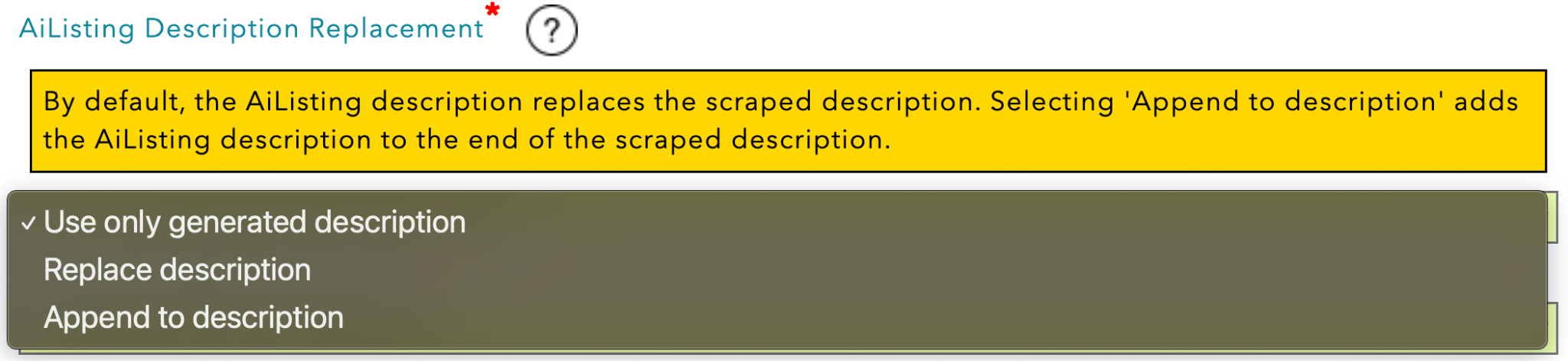
AiListing Description Replacement: By default, the listing will only use the AI generated description. You can choose to either…
Use only the AI description
Replace the AI Description to only use the user generated description (optional input field)
Append to description to add the user generated description below the AI description
AiListing Description Creation:
The Short Description is always pulled directly from existing human-written content found online. This is typically sourced from a Google Business Profile overview or the business’s website. This field does not use AI-generated text and is intended to reflect how the business describes itself publicly.
The AI description takes a broader approach. It gathers content from multiple available sources and uses Google Gemini to generate a new, unified AI-based text description. This allows the system to combine scattered information into a more complete and readable summary of the business, especially when no single strong source exists.
AI descriptions can be written in two different persona types, "upbeat fun style" and "business like and professional". Your organization can choose what the default persona is for these descriptions. However each AiListing can be individually set as well. 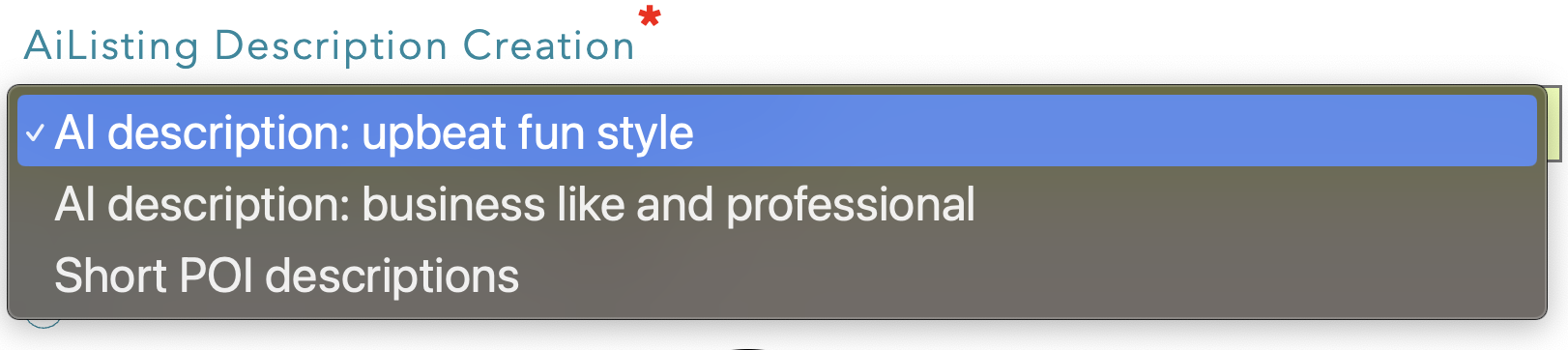
Visibility: By default your AiListing will be a draft. This is highly recommended to ensure failed AiListings don’t go public to the application. Setting visibility to “public” will automatically publish the AiListing to Driftscape.

Allow in Discovery Mode: By default your AiListing will be available in Discovery Mode. Allowing users to find your content while browsing. You can choose “no” to deactivate discovery mode on this AiListing

App Type: The AiListing will publish to your organization’s default apps, unless you change this setting. You can choose to publish to both applications, or just one (webapp and mobile app)

Add Optional Information as Desired
Once the business name has been added, you are able to add the AiListing to the CMS. However there are additional fields you can customize to help the AI tools find the business & customize the AiListing further.
AiListing Business Address: Fill in this field if there are numerous businesses with the same name

AiListing Business Website: Use this field to give more information and improve the description and details of the AiListing

AiListing Longitude and Latitude: Use these fields to help AI find the business accurately

Maximum AiListing Photos: By default the maximum photos for an AiListing will follow the organization’s settings (or zero if organization settings are not defined). Use this field to change the maximum number of photos AI will pull for the listing.
It’s recommended to keep the photo count lower in order to prevent false photos being added

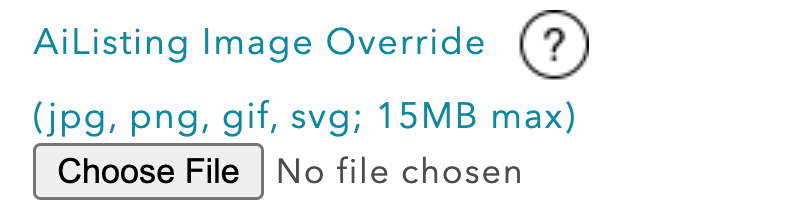
AiListing Image Override: Use this field to override the images that AI pulls from the internet with your own images
AiListing Operating Date Range: Add an optional date range the business operates between (eg. May - November or Fall-Spring).

Access Key: Fill in this field if you want the content to be password protected. The password will be whatever you add to the “access key” field

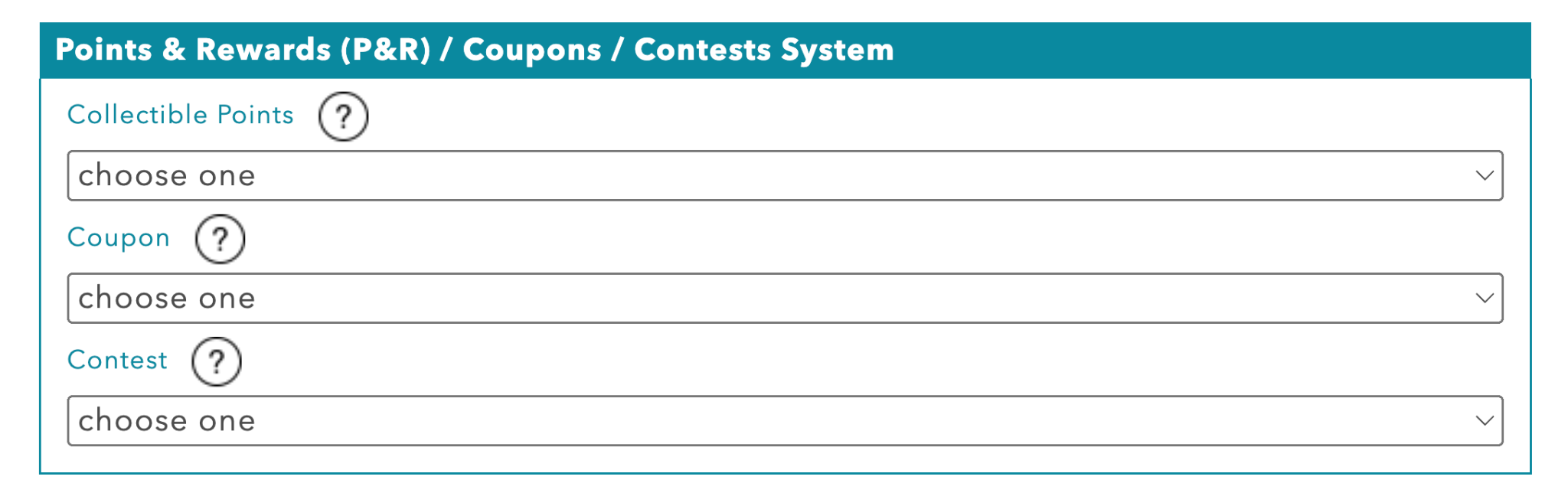
Collectible Points: Choose a point offered from your organization that will be offered at the POI
Coupon: Choose a coupon available from your organization that will be offered at the POI
Contest: Choose a contest that will be enterable from this POI
Step 4: Add your AiListing
Use the “ADD” button at the bottom of the editor when you’ve finished inputting all the desired details.

Once you’ve added your AiListing, you will see a generation message above the POI details
Give the CMS 3-5 minutes to generate the AiListing. Then come back or refresh the page to review your listing
Step 5: Verify the AiListing is Correct
Once you’ve added your AiListing and given the system time to generate the content. Check that the listing is accurate and displaying the correct content.
First find the AiListing in your organization content table and ensure “(FAILED ABD)” is not beside the title.

If your AiListing is displaying “(FAILED ABD)” in the title, see Failed AiListings to diagnose the problem.
Once you’ve checked that “(FAILED ABD)” is not in the title. Click the title to open up the POI details.
While looking at the POI details, verify that the description, photos and business hours are accurate. If anything is missing or looks wrong, click the “Edit AiListing” button to make changes.

See Step 3 for details on all the fields you can edit and how they will affect the AiListing.
Once you have verified all of the information is accurate, or changed the information you wish to change. Your AiListing is ready to publish.
When you want the listing to go live, navigate to the “edit AiListing” page and change the “visibility” field to “public”

Then select update at the bottom of the page

Your AiListing will now be public inside of Driftscape. Continue following these steps to add all of your AiListings to the CMS.
Related Articles
Converting AiListings into POIs
Was this article helpful?
That’s Great!
Thank you for your feedback
Sorry! We couldn't be helpful
Thank you for your feedback
Feedback sent
We appreciate your effort and will try to fix the article