TABLE OF CONTENTS
- What is Copy/Pasting a POI?
- Examples of Use Cases for Copy/Pasting a POI
- Get Started: Copying and Pasting a POI
- Additional Details
You can copy an existing POI (Point of Interest) to create a new POI. This can be within the same organization, in a different organization, or even as a new stop in a tour. This is helpful when you may have an existing Place that you want to use as a tour stop in a tour, for example.
What is Copy/Pasting a POI?
Copy/Paste allows you to duplicate an existing POI and place it somewhere else in the CMS. The copied POI can be pasted into another organization, or used as a tour stop within a tour.
This feature helps save time when creating similar POIs or when reusing existing content across multiple places or tours. Instead of recreating the content manually, the POI can simply be copied and pasted.
Examples of Use Cases for Copy/Pasting a POI
Use Case 1: Creating a Similar POI Quickly
If you have a POI with similar structure or content to another one you want to create, you can copy the existing POI and paste it to create a duplicate. You can then edit the duplicate to customize the information.
Use Case 2: Reusing a Place as a Tour Stop
If you already have a Place POI that you want to include as part of a tour, you can copy the POI and paste it directly into the tour as a Tour Stop.
Use Case 3: Moving Content Between Organizations
POIs can also be copied and pasted into another organization if you want to reuse the content in multiple places.
Copy/Pasting a POI Tutorial Video
Get Started: Copying and Pasting a POI
Step 1: Access the Driftscape CMS
Log into the CMS using your credentials and click on Org Content. Here you will see a list of all your current POIs.
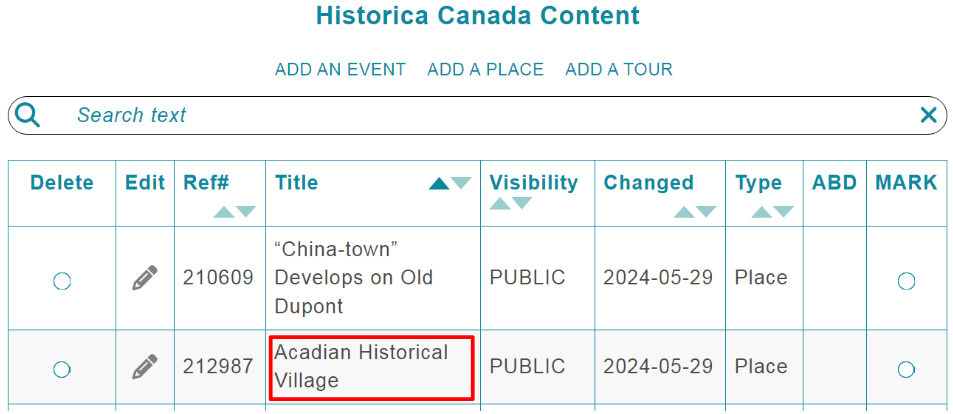
Step 2: Open the POI You Want to Copy
Click on the POI title under the Title column to open the POI.
Do not click the pencil icon under the Edit column.
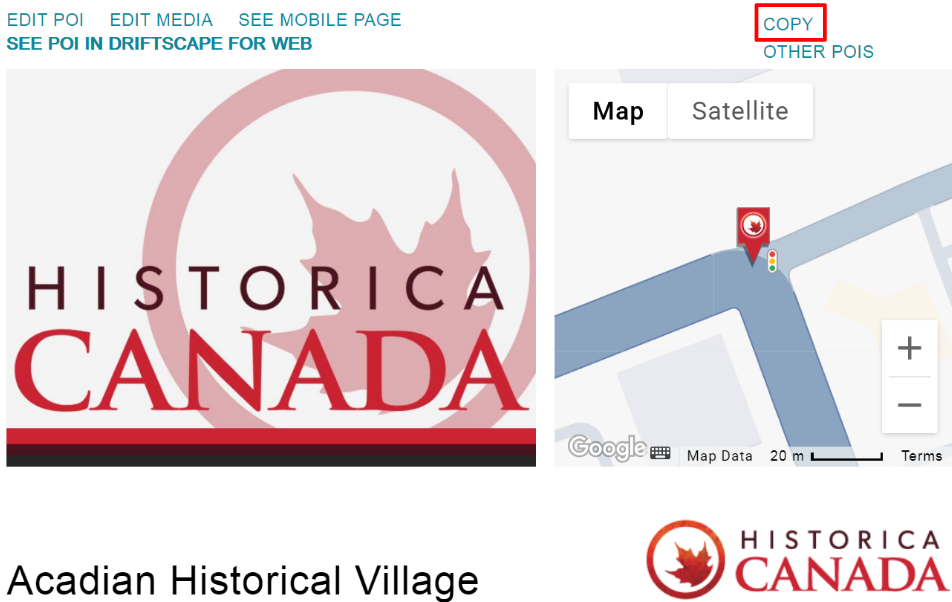
Step 3: Copy the POI
Click Copy in the upper right corner of the menu.
A pop-up dialog box will confirm that the POI has been copied to the clipboard.

Step 4: Navigate to the Target Organization
Navigate to the organization that you want to paste this POI to (if you want to add this as a tour stop, skip to step 6)
Step 5: Paste the POI
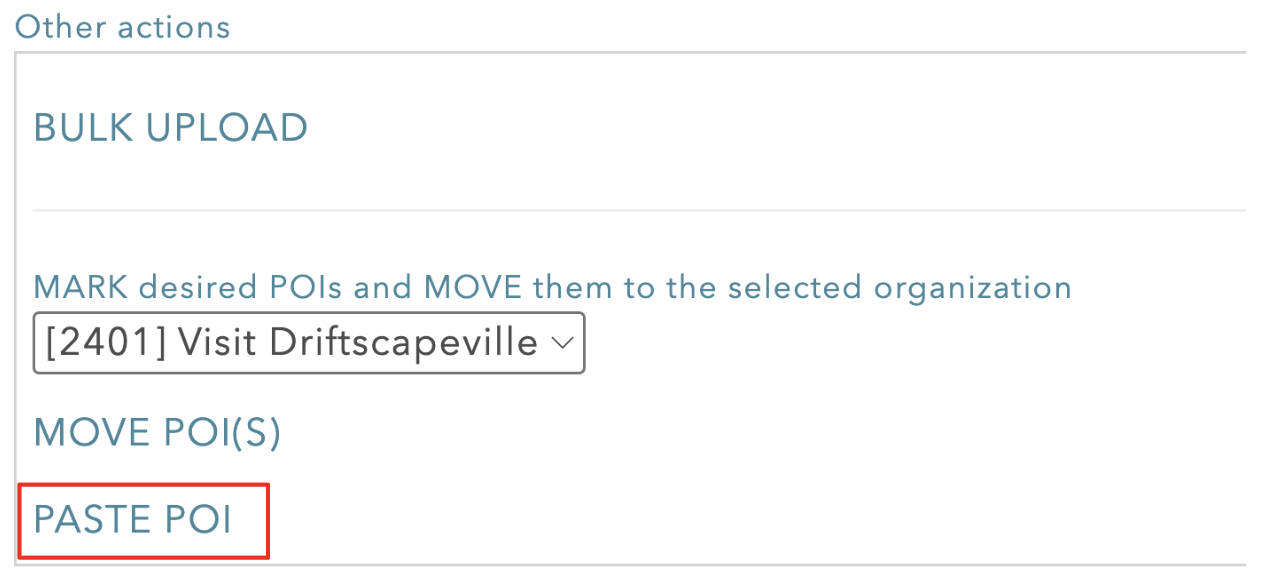
Within the target organization, scroll to the bottom of the POI list and select PASTE POI.
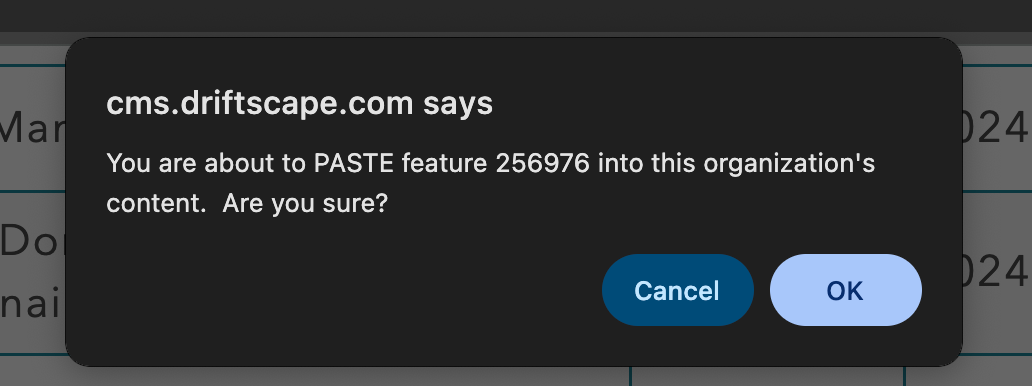
A confirmation dialog box will appear asking you to confirm that you want to paste the POI into the target organization.
Step 6: Paste a POI into a Tour
If you want to copy a Place POI as a Tour Stop, open the Tour and scroll to the bottom of the page.
Choose PASTE POI, and the POI will be added as a new Tour Stop at the end of the tour.
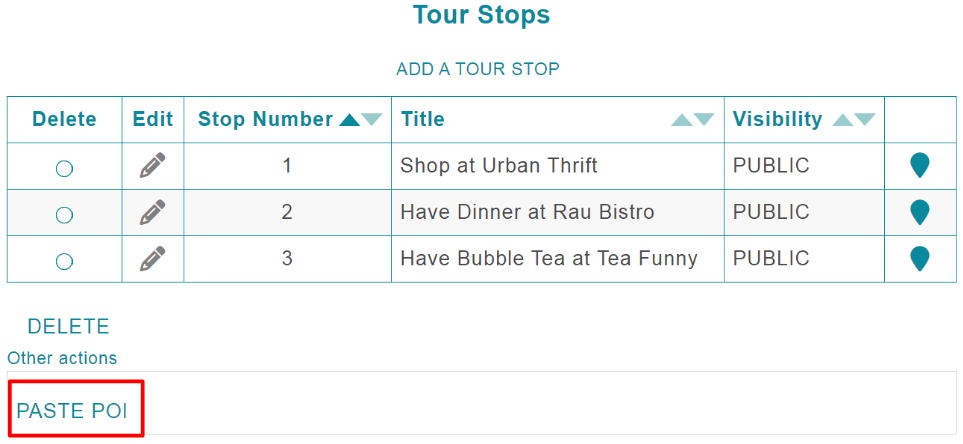
Step 7: Edit your POI or Tour Stop
Once you have pasted your POI or Tour Stop, you can edit them as you see fit. To edit your content, follow the instructions in Editing Your POIs
Additional Details
Some important things to keep in mind:
The copied POI or Tour Stop is completely independent of the original. Changes to one will not affect the other.
All media associated with the POI is copied as well and can be edited or deleted independently.
When copying an AiListing, you will be prompted to confirm whether you want to copy it as an AiListing or convert it into a regular POI (if your plan has space available).
Was this article helpful?
That’s Great!
Thank you for your feedback
Sorry! We couldn't be helpful
Thank you for your feedback
Feedback sent
We appreciate your effort and will try to fix the article