TABLE OF CONTENTS
- Adding and Editing Media Tutorial Video
- What is Media in Driftscape?
- Supported Media Types
- Get Started: Adding Media
- Best Practices for Media
- Related Articles
Media plays an important role in making your content engaging and visually appealing within the Driftscape app. Images, videos, and other media elements help visitors better understand locations, experiences, and attractions featured in your organization’s content.
This guide explains how to add and edit media within the Driftscape Content Management System (CMS). By attaching media to your Points of Interest, Tours, or other content types, you can create richer experiences that encourage exploration and improve how your content appears in the app.
Adding and Editing Media Tutorial Video
What is Media in Driftscape?
Media refers to the visual content that can be added to locations, tours, and other entries within the Driftscape CMS.
This typically includes:
Images
Photo galleries
Video content
Other visual media used to enhance listings
Adding media helps visitors better understand a destination before they visit. For example, a restaurant might include photos of dishes, a historic landmark might include archival images, or a park might feature scenic photography.
High-quality media can significantly improve engagement with your content in the Driftscape app.
Supported Media Types
The CMS supports several types of media attachments depending on the content you are creating.
Common media formats include:
Images (most commonly used)
Multiple image galleries
Embedded media such as videos & 360 images/tours
Images are the most frequently used media type and are typically displayed prominently in the app when users view a location or tour stop.
Get Started: Adding Media
Step 1: Access the POI you Want to Add Media to
Open the Driftscape CMS login page.
Enter your username or email address and password.
Click Log On.
After logging in, you will see a list of organizations associated with your account.
Select the organization that contains the POI you want to add media to
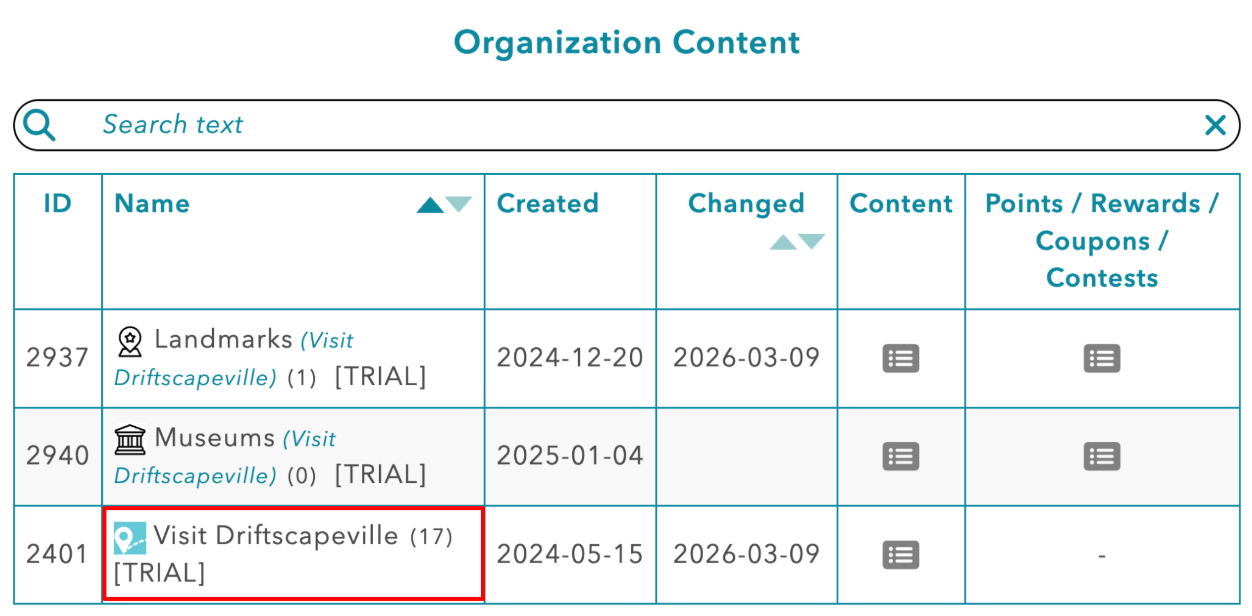
Then select the POI title you wish to add media to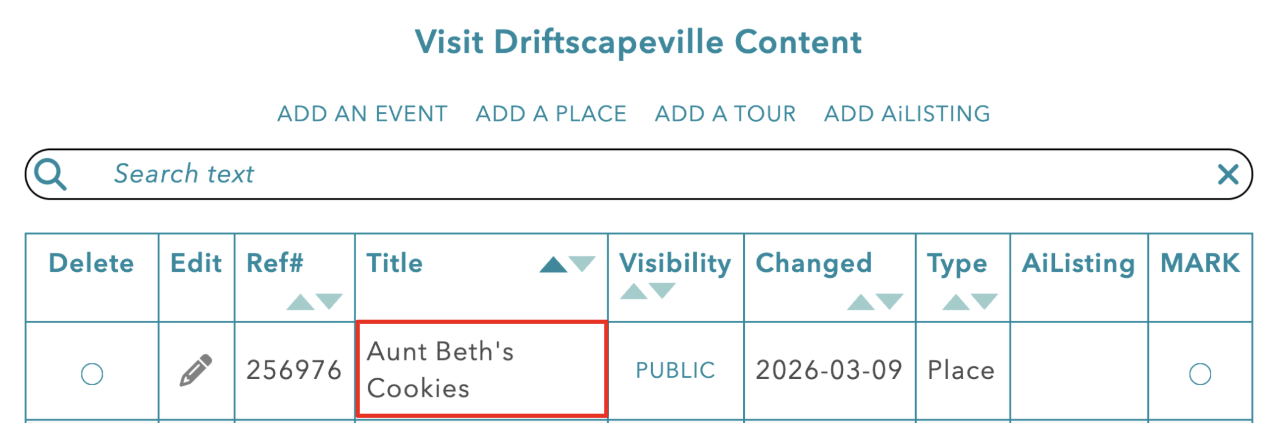
Step 2: Add your Media Item
Select “EDIT MEDIA” in the top navigation bar of the page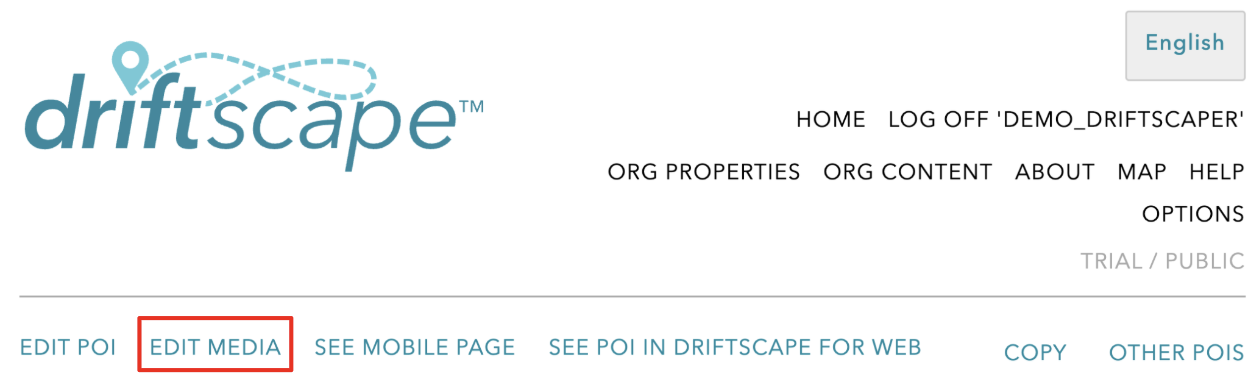
Then select “ADD MEDIA ITEM”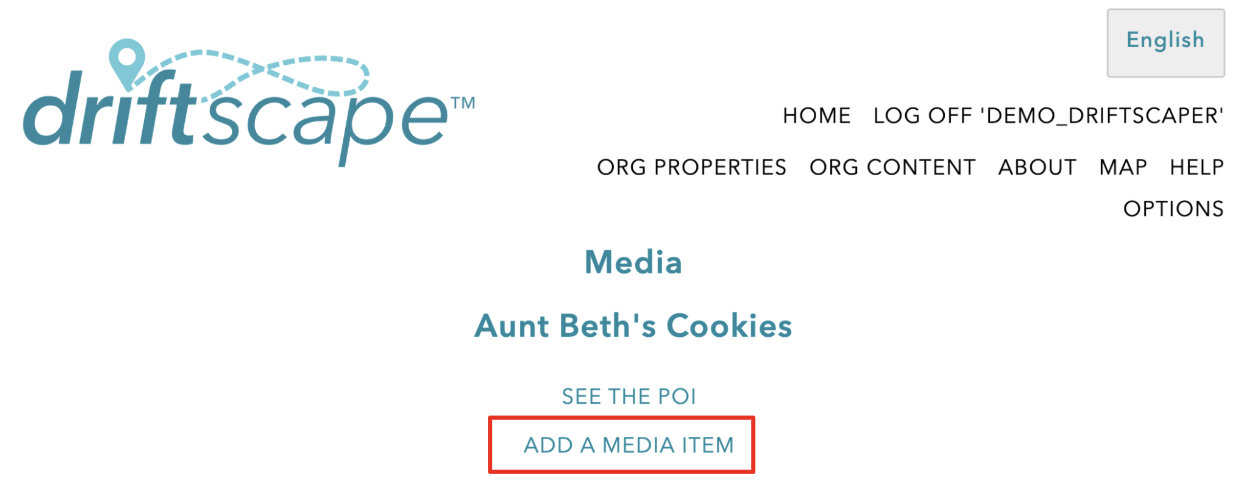
Next select the media type you wish to add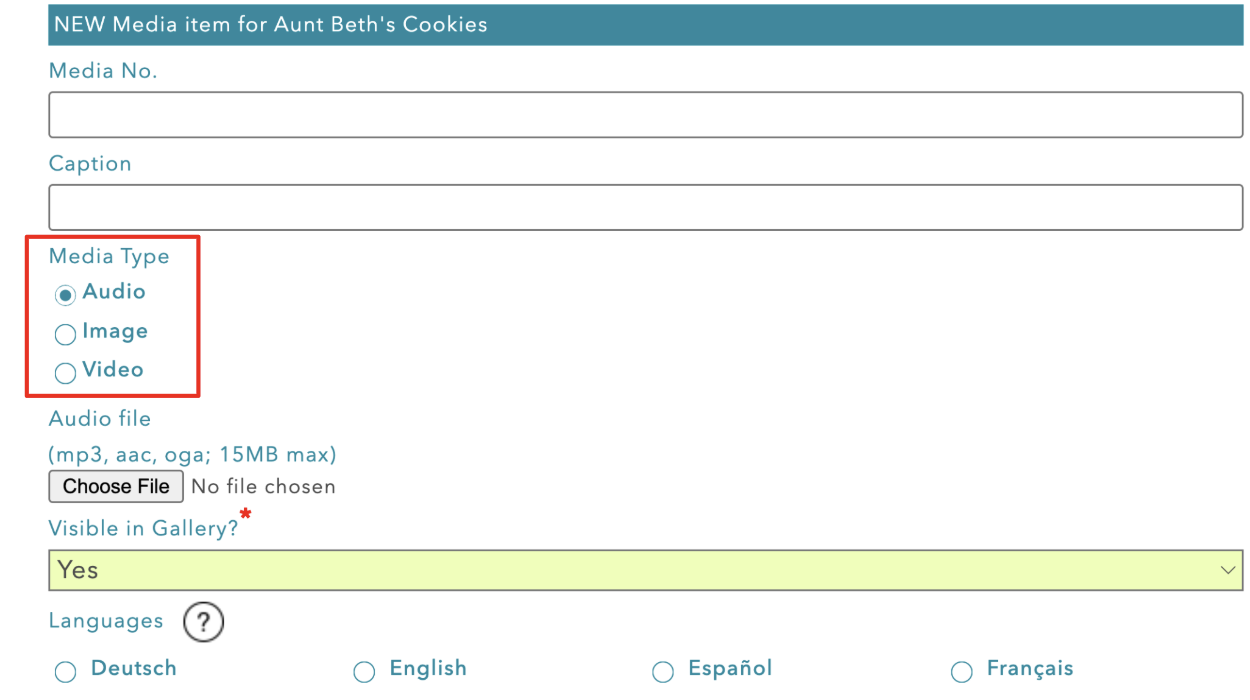
Media Types
Audio
Upload an MP3, AAC or OGA audio file to the CMS
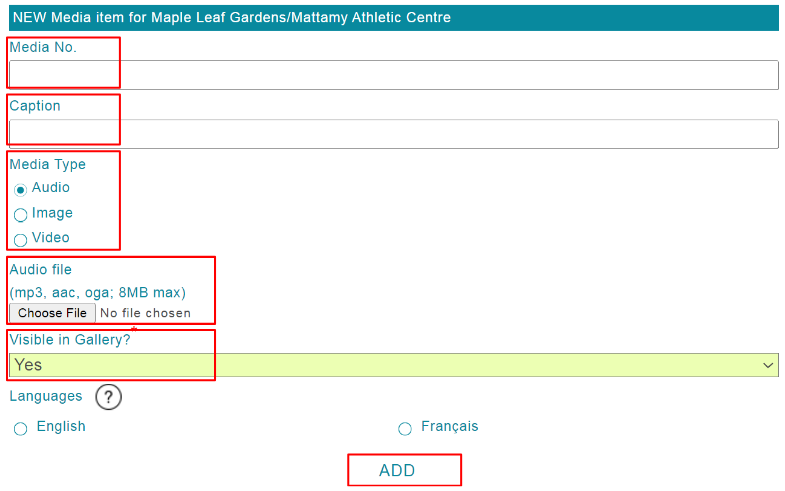
Media No. (optional & does not affect audio)
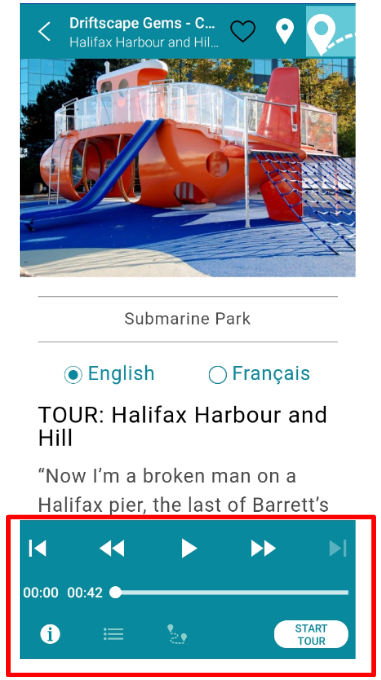
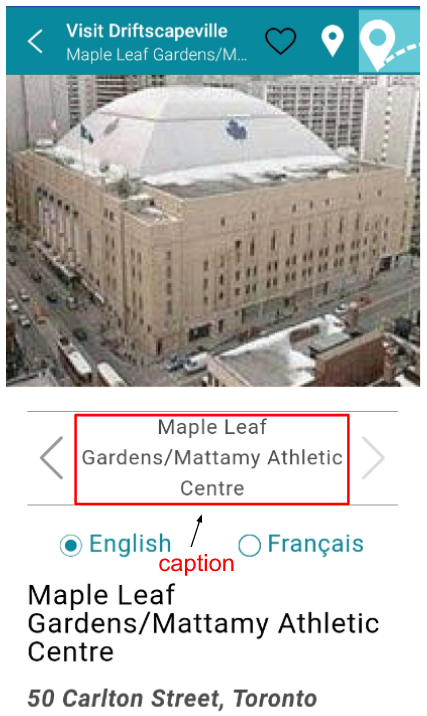
Caption (optional, appears above the audio player on the platform)
Choose File (opens your computer file browser to select your audio file)
Visible in Gallery (if no - users will not see the audio file)
Languages - if audio has specific language used, select the language
Select “ADD” to save the media item
Use only one audio file per POI
Image
Upload a JPG, PNG, GIF, SVG or WEBP image file to your POI
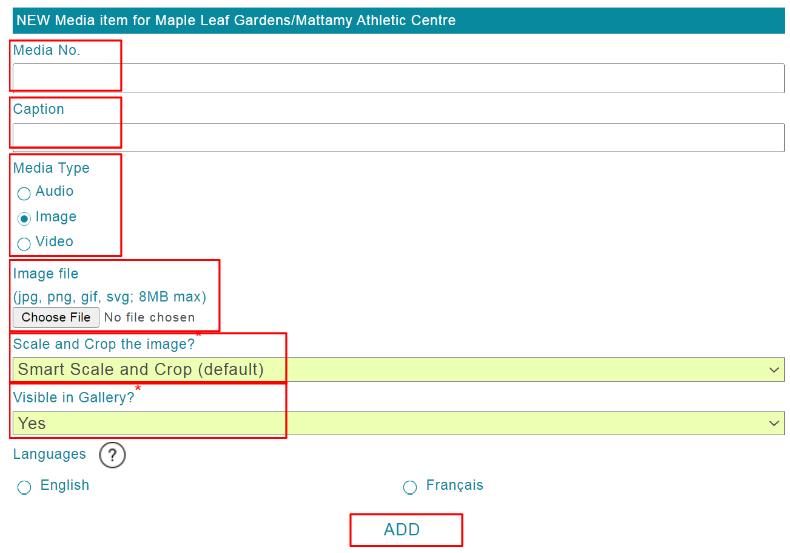
Media No. (optional - sets the gallery display order for media)
Caption (optional - appears under the photo on the platform)
Choose File (opens your computer file browser to select your audio file)
Scale and Crop the Image (choose how the platform crops or scales your image, Smart Scale and Crop is recommended by default)
Visible in Gallery (if no, users will not see the image in the gallery above the POI text. See Adding Inline Images to your Description for use cases on non-visible images)
Languages (if the image contains text in a specific language, identify it here)
Select “ADD” to save the media item
Video
Add a YouTube video to your Driftscape POI
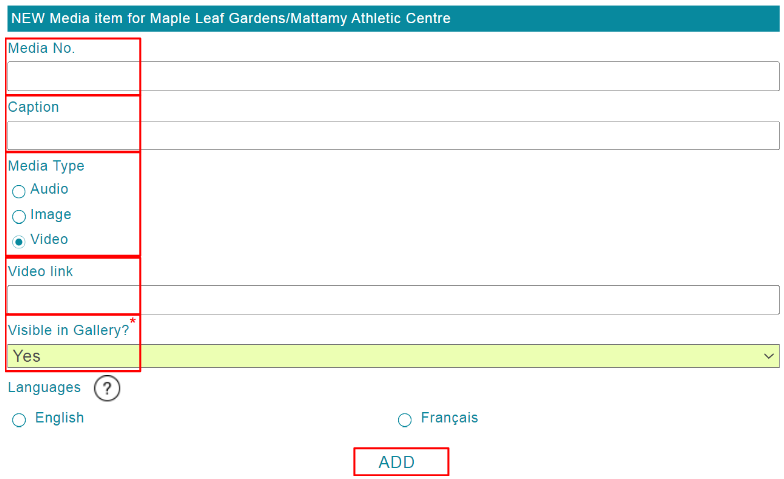
Media No. (optional - sets the gallery display order for media)
Caption (optional - appears under the video on the platform)
Video Link (add the URL to your YouTube video here)
Visible in Gallery (if no, users will not see the image in the gallery above the POI text. See Adding Inline Images to your Description for use cases on non-visible videos)
Languages (if the video is in a specific language, identify it here)
Select “ADD” to save the media item
360 Photos and Virtual Tours
You can add 360° photos and virtual tours hosted by our providers into the media gallery for any POI, tour stop, or quest stop. For full information, please visit our article about 360 Photos and Virtual Tours.
Customers can associate a 3D Object with a Place, an Event or a Tour…but not with Tour Stops.
3D objects are added as media items to a POI (Point of Interest). Only add one 3D object to any POI (if you add more than one, only the first 3D object is used). For full information, please visit our article about Add a 3D Object as a Media Item.
Step 3: Editing your Media
Once you have added your media items, you can choose to edit the items at anytime. To edit your media item, select the pencil icon beside the media item on your “edit media” page.
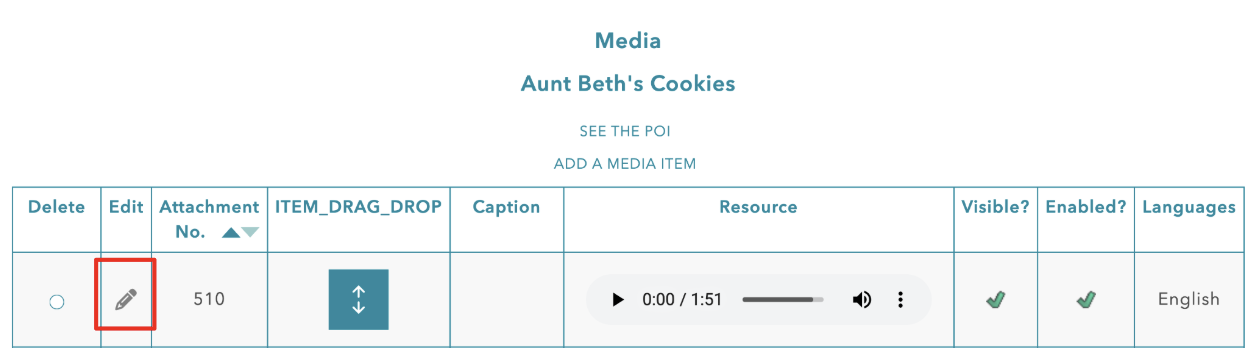
Edit the fields you wish to change on the media item. Then select “UPDATE” at the bottom of the page.
Step 4: Reorder Your Media Items
Media items are displayed in the POI gallery in the same order they appear on your “EDIT MEDIA” page. To reorder media items, use the drag & drop arrows beside your media item.
Drag that media item to the place you want it displayed in the gallery. Then release your mouse.
This will automatically reorder your media items in the POI gallery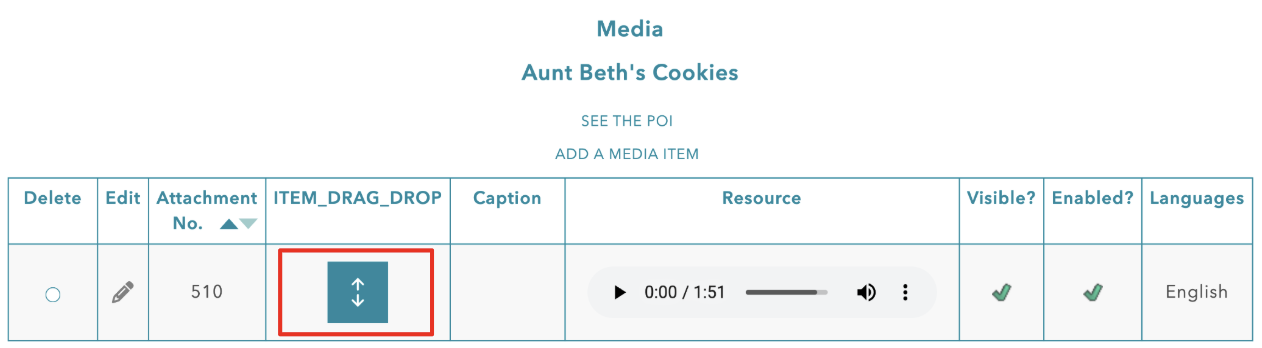
Step 5: Delete your Media Items
To delete your media item(s) mark the delete circles beside every item you want to delete.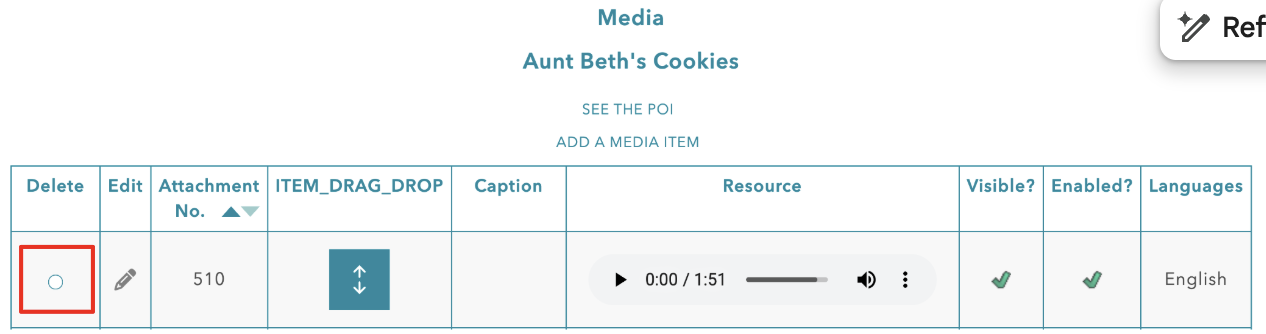
Once you have marked all the media items you want to delete, select the “DELETE” button at the bottom of the page.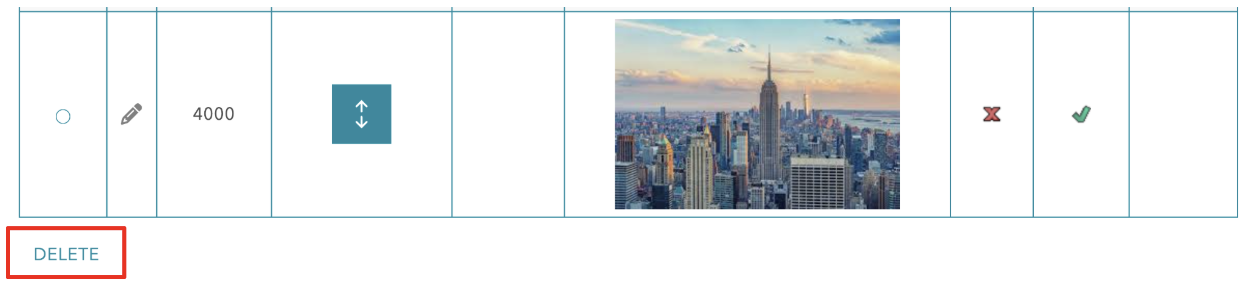 This cannot be undone, so be cautious and only delete the items you intend to delete
Best Practices for Media
To ensure the best experience for users, follow these recommendations when uploading media:
Use high-quality images that clearly represent the location or experience.
Avoid blurry or low-resolution photos.
Choose images that highlight the most appealing aspects of the destination.
Ensure images are appropriate and relevant to the content.
Keep file sizes reasonable to maintain fast loading times.
Well-selected media helps visitors quickly understand what makes a location interesting and encourages them to explore more content within your experience.
Related Articles
Creating Virtual Tours in Kuula
3D Objects in AR Mode Overview
Was this article helpful?
That’s Great!
Thank you for your feedback
Sorry! We couldn't be helpful
Thank you for your feedback
Feedback sent
We appreciate your effort and will try to fix the article